Audio Description: When to Include It & How
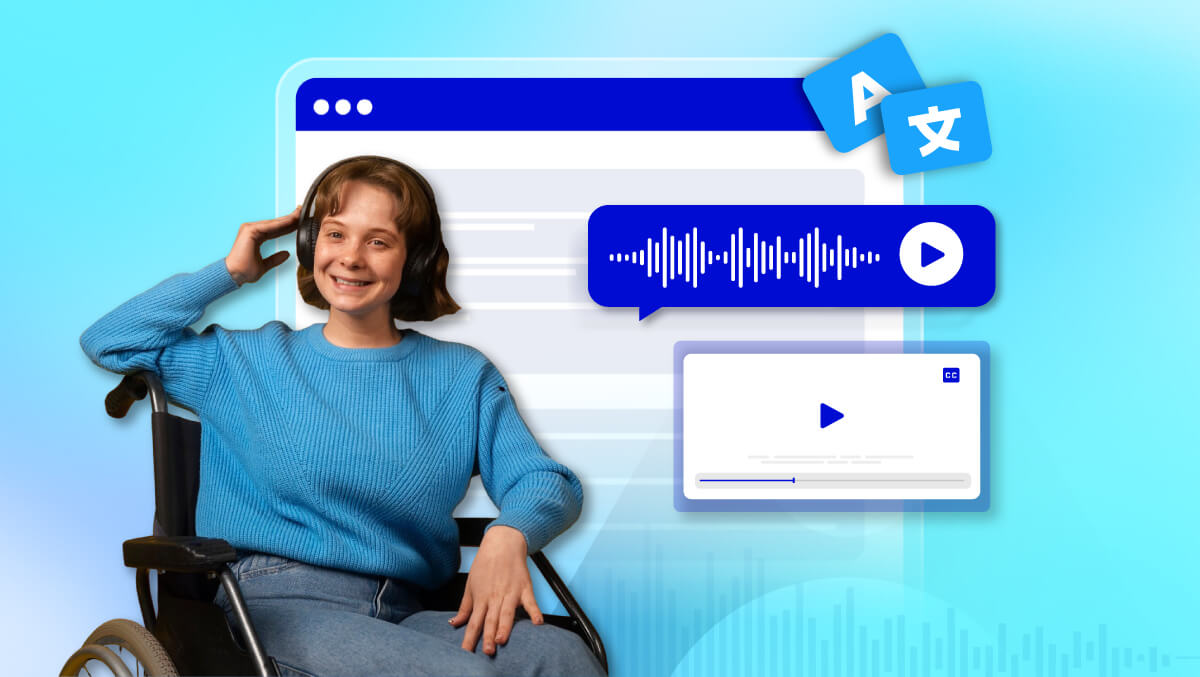
Audio description (AD) is a spoken narration that explains the important visual elements of a video, such as actions, settings, characters, and expressions, so viewers can understand what’s happening without seeing the screen.
Audio description (AD) is exactly what it sounds like: a spoken guide to the visuals on a screen. It tells you what’s happening, what people are doing, and even what expressions they’re making, so no one is left guessing.
You might think, “Why bother? Can’t people just watch?” Well, not everyone can. People who are blind or have low vision rely on audio description to understand and enjoy videos, webinars, or any visual content.
And here’s the twist: it’s not just for them. Auditory learners, busy multitaskers, or anyone who occasionally prefers listening to watching can benefit, too.
In short, audio description isn’t a luxury. It’s a small addition that makes content more accessible, inclusive, and easier to understand for everyone.
If you read this far, I’d be glad you read further!
What Is Audio Description?
Audio description (AD) is a narration track that describes important visual details in a video, such as actions, settings, characters, and on-screen text, so viewers can understand the content without relying on sight.
Who benefits from audio description?
- People who are blind or have low vision
- Users watching videos without looking at the screen
- Auditory learners and multitaskers
- Anyone who wants clearer context for visual content
Why is audio description important?
Audio description makes videos accessible and inclusive, ensuring that key visual information is not lost. It also improves overall user experience by making content easier to follow in different situations, not just for those with visual impairments.
When Should You Include Audio Description?
Audio description should be included whenever visual information is essential to understanding the content. If someone cannot fully follow the video by listening to dialogue alone, audio description becomes important.
Quick Decision Checklist
Ask yourself:
- Does the video rely on visuals?
(e.g., actions, gestures, on-screen text, scene changes) - Is dialogue alone enough to understand the content?
If yes, AD may not be necessary. If no, include it. - Is accessibility required (legally or ethically)?
For public, educational, or enterprise content, accessibility is often expected or mandated.
When Audio Description Is Needed
- Story-driven videos (films, ads, narratives)
- Tutorials or demos showing actions on screen
- Videos with important on-screen text or visuals
- Presentations with charts, graphs, or slides
When It May Be Optional
- Talking-head videos where the speaker explains everything clearly
- Podcasts or audio-first content with minimal visuals
- Simple recordings with no meaningful visual context
Simple Examples
- Talking-head video → Optional
A speaker explains everything verbally with no important visual cues. - Story-driven video → Required
Actions, expressions, and scene changes carry meaning that isn’t spoken.
If you’re unsure whether your videos meet accessibility requirements, running a quick Access Audit can help you evaluate what needs to be improved.
WCAG & Accessibility Requirements

Audio description is often required to meet accessibility standards such as WCAG (Web Content Accessibility Guidelines) 2.1 and 2.2.
WCAG Overview (2.1 / 2.2)
WCAG ensures that digital content is accessible to people with disabilities. For video content, this means making sure that important visual information is also available through audio.
WCAG Levels: A vs AA
- Level A (Minimum)
Requires either basic audio description or an alternative such as a detailed transcript. - Level AA (Standard)
Requires audio description for - pre-recorded video content where visuals are necessary for understanding.
Most organizations aim for
Level AA compliance.
When Audio Description Is Required
Include audio description when:
- Visual elements are not explained in dialogue
- The content cannot be understood without seeing it
- The video is public-facing, educational, or part of a service/product
Legal & Compliance Considerations
Following WCAG helps meet accessibility regulations and organizational standards. It also reduces legal risk and ensures broader audience access.
In short: If visuals carry meaning, audio description is needed for compliance. For ongoing compliance, tools like an Access Monitor help track and maintain accessibility standards over time.
What Audio Description Includes And Describes
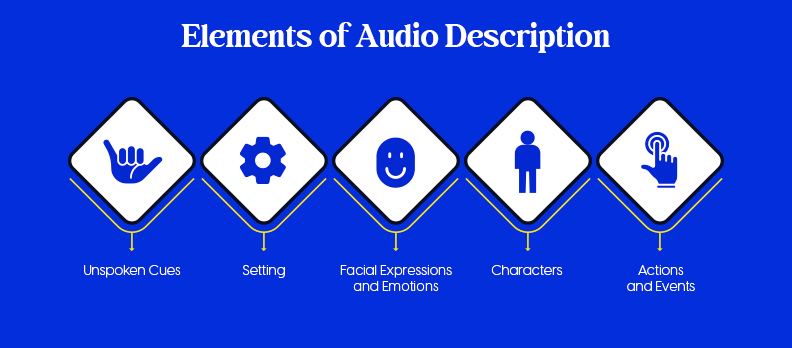
Audio description focuses on the visual elements that are important for understanding the content. Here’s what it typically covers:
- Setting
Describes the location, background, or environment.
Example: “A quiet park with empty benches and trees swaying in the wind.” - Characters
Explains what people look like, how they move, and their gestures.
Example: “A tall man in a blue jacket walks in with a slight limp.” - Actions and Events
Details what is happening on screen and who is performing the actions.
Example: “She picks up the phone and quickly leaves the room.” - Facial Expressions and Emotions
Notes expressions and body language that convey emotion.
Example: “He smiles briefly, then frowns as he reads the message.” - Unspoken or Non-Verbal Cues
Highlights important silent elements such as gestures or on-screen text.
Example: “The screen displays: ‘Meeting canceled.’ She crosses her arms.”
Each description should be concise, clear, and well-timed, fitting naturally between dialogue and key audio moments.
Types of Audio Description
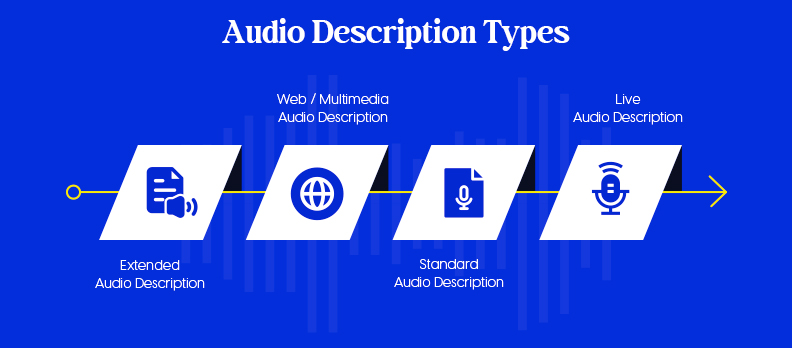
Audio description can take several forms, depending on the content and the audience's needs. The main types are:
- Standard Audio Description: Aligns narration with natural pauses in dialogue, adding essential details without interrupting the flow.
Best used for: Films, marketing videos, and general content where timing gaps are available. - Extended Audio Description: Pauses the video or adds extra space to provide more detailed explanations of complex visuals.
Best used for: Fast-paced scenes, detailed tutorials, or content with dense visual information. - Web / Multimedia Audio Description: Describes images, graphics, and interactive elements in digital content such as websites or e-learning modules.
Best used for: Online courses, interactive platforms, and multimedia presentations. - Live Audio Description: Delivered in real time by trained describers during live events.
Best used for: Theatre, live broadcasts, sports events, and conferences.
Choosing the right type depends on the content, the audience, and how much visual detail needs to be conveyed.
Audio Description Examples
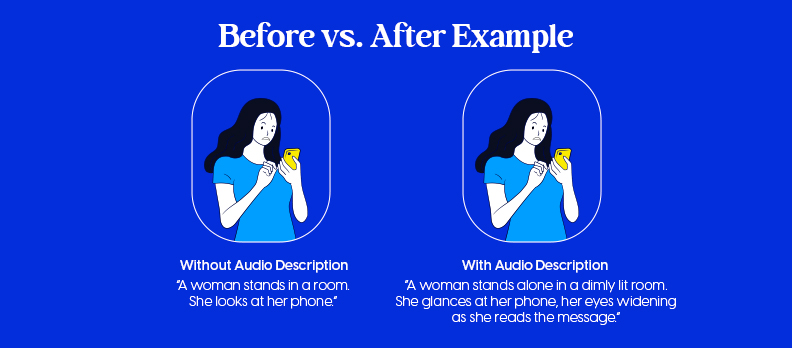
Seeing how audio description works in practice makes it much easier to understand its value.
Before vs After Example
Without Audio Description:
“A woman stands in a room. She looks at her phone.”
With Audio Description:
“A woman stands alone in a dimly lit room. She glances at her phone, her eyes widening as she reads the message.”
Short Script Sample
Scene: A man enters an office and reacts to something on his desk.
Audio Description Script:
“A man in a grey suit walks into a tidy office. He stops at his desk, noticing a broken laptop. His expression shifts from confusion to frustration as he runs a hand through his hair.”
These examples show how audio description adds context, emotion, and clarity, helping users fully understand what is happening beyond the spoken dialogue.
Best Practices for Writing Audio Description
Writing effective audio description is about clarity, timing, and relevance. These best practices help ensure your descriptions are useful without being distracting:
- Be objective (no interpretation)
Describe what is visible, not what you think it means.
Say: “She wipes her eyes.”
Not: “She feels sad.” - Keep it concise
Use short, clear sentences that fit naturally between dialogue. Avoid overloading with detail. - Use natural pauses
Place descriptions in gaps between speech or important audio. Do not overlap key dialogue or sound effects. - Prioritize key visuals
Focus on what is necessary to understand the scene, actions, changes, and important details. - Avoid redundancy
Do not describe what is already स्पष्ट in dialogue or audio. Add only new, meaningful information. - Use clear and simple language
Avoid complex wording. The goal is quick understanding. - Maintain consistent tone and tense
Typically use present tense and keep the tone neutral and descriptive.
Following these practices ensures that audio description enhances the content without interrupting its flow.
How to Create Audio Description
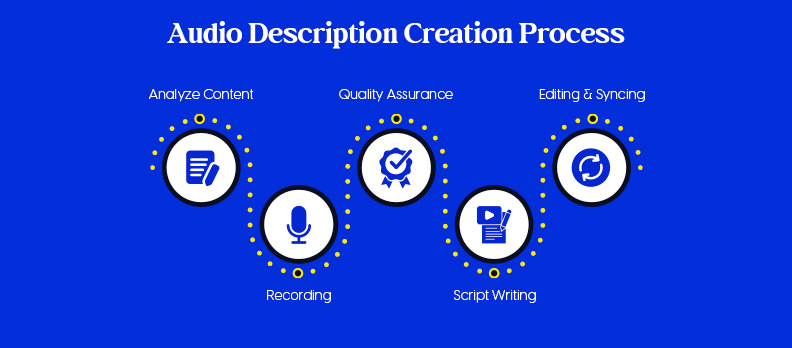
Creating effective audio description involves careful planning and attention to detail.
Here’s a step-by-step approach:
Step 1: Analyze the Content
Watch the video from start to finish.
Identify key visual elements:
- Settings and scene changes
- Actions and events
- Facial expressions and gestures
- On-screen text
Step 2: Script Writing
Write short, clear descriptions in simple language.
- Fit descriptions into natural pauses in dialogue
- Keep it objective (no interpretation)
Script clarity tips:
- Use present tense (“She opens the door”)
- Be specific but brief
- Focus only on essential visuals
Step 3: Recording
Use a clear, steady voice with natural pacing.
- Avoid rushing or dragging
- Maintain consistent tone and volume
Step 4: Editing & Syncing
Align the narration precisely with the video.
- Ensure descriptions do not overlap dialogue
- Match timing with visual actions
Timing tips:
- Insert descriptions in pauses between speech
- Start slightly before or exactly when the action happens
- Keep descriptions short enough to fit available gaps
Step 5: Quality Assurance (QA)
Review the final output carefully.
- Test with accessibility users or experts
- Check clarity, timing, and completeness
- Refine where needed
Common Mistakes to Avoid
- Describing too much or too little
- Overlapping dialogue or important sounds
- Adding interpretation instead of facts
- Ignoring timing and pacing
- Using complex or unclear language
Following these steps ensures your audio description is accurate, well-timed, and enhances understanding without disrupting the viewing experience.
Tools & Software for Audio Description
Creating audio description can be done with a mix of manual tools, AI solutions, and dedicated accessibility platforms. The right choice depends on your workflow, budget, and scale.
Manual Tools (Video Editors)
These tools help you record, edit, and sync audio description tracks:
- Video editing software (e.g., Adobe Premiere Pro, Final Cut Pro)
- Audio editors (e.g., Audacity)
- Timeline-based syncing tools
Best for: Full control over timing and quality, especially for professional or detailed projects.
AI Tools (Voice Generation)
AI tools can generate narration from scripts quickly:
- Text-to-speech (TTS) tools
- AI voice generators with natural-sounding output
Best for: Faster production, scaling content, and reducing recording effort.
Accessibility Platforms
These platforms are designed specifically for accessibility workflows:
- Tools that support audio description tracks
- Platforms that integrate subtitles, captions, and AD
- Solutions for compliance and large-scale content management
Best for: Organizations handling accessibility at scale or needing compliance support.
Choosing the Right Tool
- Small projects: Manual tools or simple AI solutions
- Growing content needs: Combine AI with editing tools
- Enterprise/compliance: Use dedicated accessibility platforms
Selecting the right tools ensures your audio description is efficient to produce while maintaining quality and accessibility standards. For a more complete solution, accessibility platforms like Access Services can support everything from audits to implementation.
How to Turn On And Use Audio Description on Platforms
Audio description is only helpful if viewers can access it easily. Different platforms have different ways to add or enable AD:
- YouTube:
- Go to YouTube Studio → Subtitles → Add Language → Audio to upload an AD track.
- Viewers can select the audio description track if it is available.
- Other Platforms:
- Some platforms may require uploading a separate version of the video with the audio description included.
- Others allow using built-in accessibility settings to add AD.
- Streaming Services (Netflix, Hulu, HBO Max, etc.):
- Most services offer an option to enable audio description in the player settings.
- Viewers can enable or disable it as they prefer.
The key is to make sure your AD track is clearly labelled and easy to find. This ensures that viewers who need it can access it without confusion.
Use Cases: Where Audio Description Matters
Audio description is valuable across many types of content where visuals play a key role in understanding.
- Marketing Videos
Ads, product demos, and brand stories often rely on visuals, expressions, and on-screen text. Audio description ensures all users can follow the message and intent. - E-learning & Online Courses
Training materials, tutorials, and instructional videos frequently include demonstrations, slides, or diagrams that need to be explained for full comprehension. - Social Media Content
Short videos on platforms like Instagram, LinkedIn, or YouTube often communicate through visuals. Audio description improves accessibility and reach. - Corporate Training & Internal Content
Onboarding videos, compliance training, and internal communications should be accessible to all employees, including those with visual impairments.
Audio description is especially important wherever visual context carries meaning. Adding it not only improves accessibility but also makes content clearer and more inclusive for a wider audience.
To improve accessibility across all these use cases, adding an Access Widget can enhance user experience directly on your website.
Difference Between Audio Description, Subtitles, and Transcripts
Audio description is often confused with subtitles or transcripts, but each serves a different purpose:
| Feature | Audio Description (AD) | Subtitles / Captions | Transcripts |
| Format | Spoken narration | Text on screen | Written document |
| Purpose | Explains visual elements (actions, expressions, settings) | Shows spoken dialogue and important sounds | Complete record of spoken content, sometimes including sound cues |
| Audience | People who are blind or have low vision, and others who prefer audio | People who are deaf or hard of hearing | Anyone needing a written reference of the content |
| How it’s used | Played along with the video | Displayed on screen during playback | Read separately from the video |
| Unique benefit | Provides context for visuals so viewers understand what’s happening | Helps viewers follow the audio without sound | Provides a complete written record of dialogue and sounds |
Conclusion
Audio description is a simple but powerful tool that makes visual content accessible and inclusive. It ensures that people who are blind or have low vision can follow the story, understand actions, and fully experience the content.
You should include audio description whenever visual details are important to understanding your content or when accessibility compliance is required.
To identify which videos need audio description and ensure compliance, start with a free accessibility audit and uncover gaps in your content.
Performing an accessibility audit of your videos can help identify which content needs audio description and ensure that all accessibility requirements are met.
The process is straightforward: analyze the content, write a clear script, record the narration, carefully edit and sync it, and perform quality checks before publishing.
Accessibility doesn’t have to be complicated, but it does need to be intentional!
FAQs
Audio description (AD) is a spoken narration that explains visual elements of a video, including actions, settings, characters, and expressions. It helps people who are blind or have low vision understand what’s happening on screen.
Primarily, people who are blind or have low vision benefit. However, auditory learners, multitaskers, and anyone who prefers listening can also find it helpful.
The process involves analyzing your content, writing a clear script, recording the narration, editing and syncing it with the video, and performing a quality check. Many platforms allow you to upload an AD track or enable it through accessibility settings.
Audio description provides spoken information about visuals, subtitles show dialogue and sounds in text, and transcripts are written records of the content. Only AD gives context for the visual elements.
Not every video needs it. Videos with important visual details, storytelling, or instructional content should include AD.
Yes, for small projects or short videos, you can create your own AD by following simple steps: script the visuals, record narration, sync it with the video, and review it. For larger projects, professional services or tools may be more efficient.