Designing Accessible Forms for WCAG Compliance: Find, Fix, and Prove
Forms are more than UX elements. They are compliance checkpoints where users complete business-critical actions like checkout, account creation, login, payments, lead generation, support requests, applications, bookings, and account recovery.
When labels are missing, validation is inaccessible, keyboard navigation breaks, or errors are not announced correctly, the issue becomes more than a design problem. It becomes a commercial risk, a legal risk, and a documentation problem.
With 8,667 ADA lawsuits filed in 2025 and 95.9% of homepages failing WCAG 2.2 AA standards, businesses need to know whether their forms are actually compliant.
This guide explains what makes forms accessible, which WCAG criteria apply, where forms usually fail, and how businesses can find, fix, and prove compliance.
Accessibility Compliance. Done Right.
Form Compliance Requirements: What WCAG Demands & How to Defend It
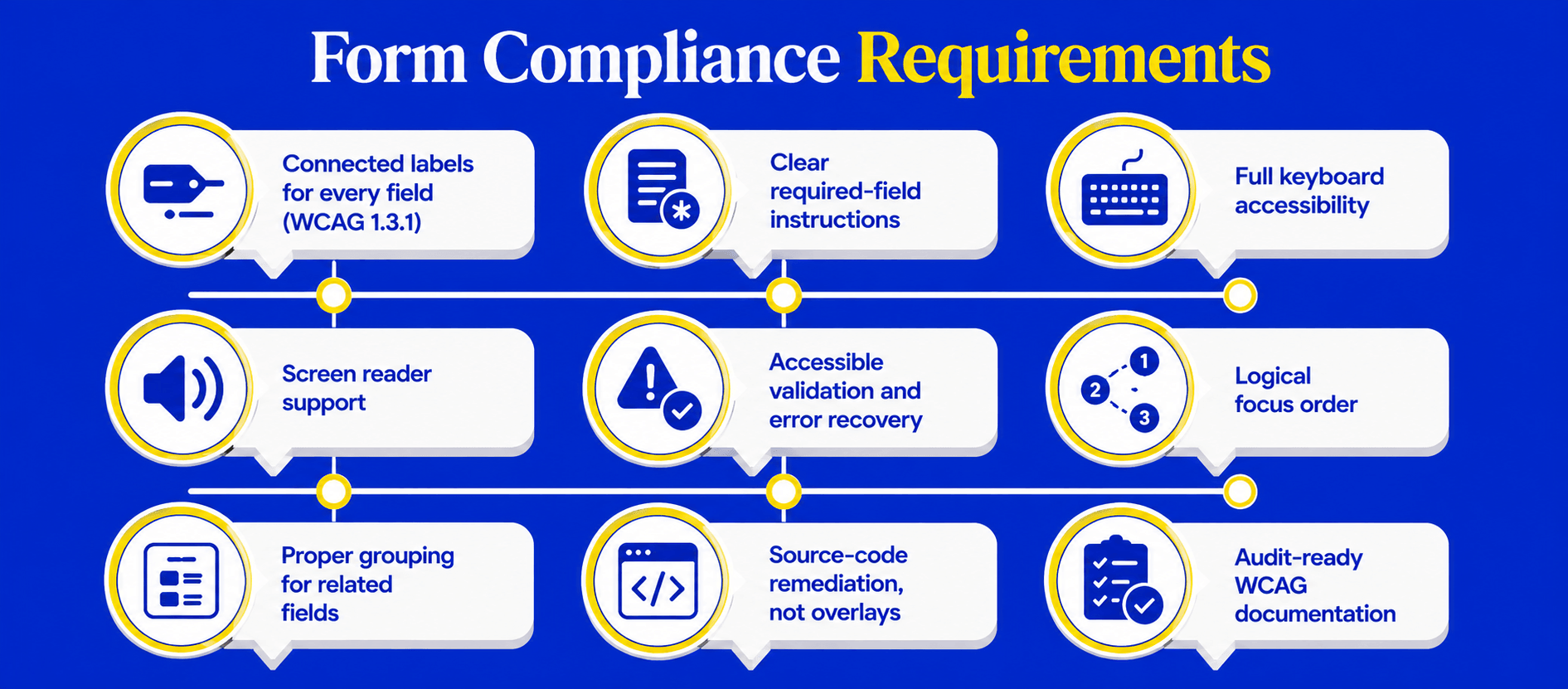
A WCAG-compliant form is one your business can prove has been audited, fixed at the source code level, and documented for legal defense. Users benefit from the compliance, but your audit trail is what defends the business.
At minimum, an accessible form must have:
- Visible and programmatic labels connected to every field. (WCAG 1.3.1). Missing labels are the #1 form compliance failure in ADA lawsuits.
- Clear required-field instructions before users submit the form.
- Keyboard-accessible controls for inputs, dropdowns, checkboxes, radio buttons, custom fields, and submit actions.
- Screen-reader-readable field names.
- Accessible validation that explains what went wrong in text.
- Clear error recovery that tells users how to fix the issue.
- Logical focus order that follows the form flow.
- Proper grouping for related fields such as radio buttons, checkboxes, addresses, and payment options.
- Source-level code fixes for missing labels, broken focus, inaccessible errors, incorrect ARIA, and custom controls, not workarounds or scripts.
- Audit-ready compliance documentation showing what was found, what code was changed, remediation dates, and WCAG criteria addressed, defensible in legal proceedings.
A form is not compliant because it looks clean or has an accessibility widget installed.
In court, a widget badge is not a defense. Compliance requires that the issue is found, fixed at the source code level, and documented with audit-ready proof, the kind that survives a lawsuit.
Why Form Accessibility Matters for Businesses
Forms are where accessibility risk becomes business risk. If users cannot complete checkout, lead forms, logins, payments, applications, or support requests, the issue can affect revenue, pipeline, account access, legal exposure, and business continuity.
Forms: Where Compliance Failures Cost Money and Lawsuits
Forms sit at critical points in the customer journey:
- Checkout forms turn visitors into customers
- Lead forms turn prospects into pipeline
- Login forms provide account access
- Payment forms complete revenue-critical transactions
- Contact, booking, application, and support forms keep operations moving
When forms are inaccessible, those outcomes break. A failed checkout can cost sales. A lead form that does not work with keyboard navigation can waste traffic. A login or password reset form that fails screen reader testing can block users from services they already paid for.
That makes checkout, signup, login, payment, and application forms high-risk areas because the accessibility failure is tied to a measurable business function.
Widgets Do Not Prove Form Compliance
Accessibility widgets can create a false sense of security. A badge may look reassuring, but it does not prove the forms underneath are compliant, usable, or legally defensible.
24.9% of sued sites already had an accessibility widget installed.
Overlays may not fix:
- Missing or disconnected labels
- Placeholder-only labels
- Invalid ARIA relationships
- Errors not connected to fields
- Keyboard traps in dropdowns, modals, or date pickers
- Third-party payment iframes
- Custom controls without correct name, role, or value
If you're sued, the court will ask:
- What form errors did you find? (Audit report)
- What code did you change? (Remediation log)
- When was it fixed? (Compliance timeline)
- Did you retest? (Post-fix verification)
A widget badge answers NONE of these questions.
A badge is not a defense. A widget is not a remedy.
If your site has a widget installed right now, you're at risk. See exactly what form violations your widget is missing. Run a free scan now!
Timeline to Compliance
Traditional DIY Accessibility Process
Typical remediation timelines using manual audits and developer fixes:
- 2–4 weeks for accessibility audit and reporting
- 3–6 weeks for developer remediation
- 1–2 weeks for retesting and verification
- Sequential workflow creates delays between audit, reporting, fixes, and QA
Average total timeline: 6–12 weeks
Faster Remediation with Accesstive
Accesstive reduces delays by combining automated detection with source-code remediation.
- 1–2 days for form accessibility scan
- Same-day generation of code fixes
- 1–2 weeks for deployment and verification depending on development cycle
- Automated scans eliminate long waits for manual reporting
Typical remediation timeline: Days instead of months
Cost of Inaction
Typical Accessibility Remediation Costs
DIY audits and manual fixes:
- $5,000–15,000 for audits and remediation
- Additional developer and QA costs
- Longer timelines increase operational risk
With Accesstive:
- $2,000–5,000 estimated remediation cost
- Faster fixes reduce project overhead
- Continuous scanning helps prevent regression
ADA Lawsuit Exposure
A single accessibility lawsuit may include:
- $10,000–50,000 in legal fees
- $25,000–500,000 in settlements
- $20,000–100,000 in post-lawsuit remediation costs
Estimated Total Exposure
- $50,000–650,000+ for a single lawsuit
Preventive Compliance Cost
- $2,000–15,000
Preventing one lawsuit can offset years of accessibility compliance investment.
Why Speed Matters
- Businesses often have 30–60 days to respond to an ADA demand letter. That timeline is tight if you're starting from zero.
- A widget badge alone does not prove compliance. Courts and procurement reviews expect evidence of testing and remediation, the exact evidence Accesstive produces automatically.
- Faster remediation improves legal and negotiation positioning. While competitors spend 6–12 weeks on manual audits, Accesstive delivers fixes in days. This speed advantage matters in court.
- If an ADA claim is filed, showing fast remediation and documented proof of compliance strengthens your defense significantly. Accesstive helps businesses quickly identify violations, generate fixes, and produce compliance documentation before issues escalate, because speed and proof are what courts demand.
Accesstive helps businesses quickly identify violations, generate fixes, and produce compliance documentation before issues escalate.
Common WCAG Form Failures Businesses Need to Find
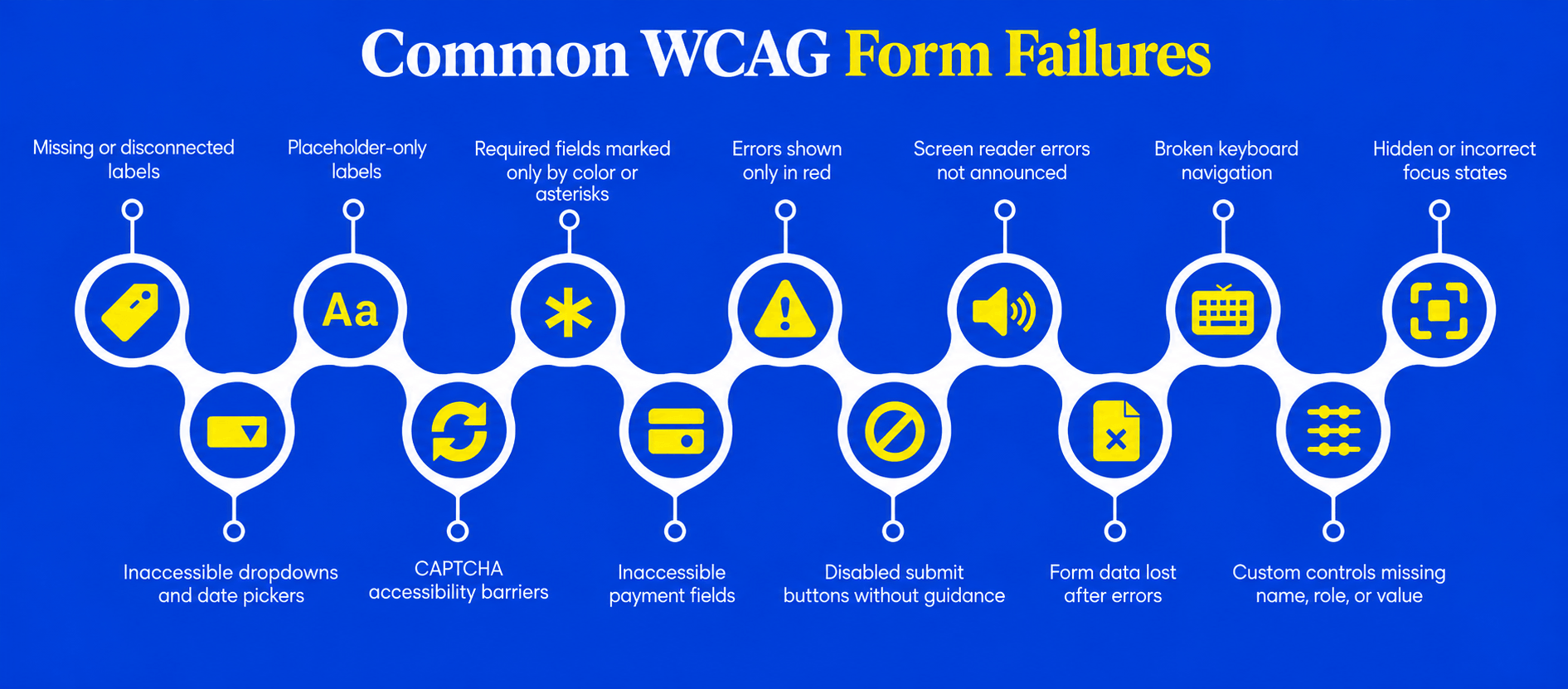
These are not small UX issues. They are compliance failures that can block a transaction, trigger abandonment, or appear in an ADA demand letter.
Common Accessible Form Violations
- Missing labels: Inputs without labels are unnamed controls. This is the most common failure cited in ADA lawsuits against e-commerce and form-heavy sites. A missing label can block checkout completion and create liability.
- Placeholder-only labels: Placeholder text disappears when users type and should not replace a visible label.
- Labels not connected to inputs: A label may be visible but not programmatically tied to the field.
- Required fields marked only with asterisks: Required fields need clear text, not only symbols or color.
- Errors shown only in red: Color alone cannot communicate an error.
- Errors not announced to screen readers (WCAG 3.3.3): When a screen reader user submits a form with errors, they never hear what failed. They're stuck. This is frequently cited in ADA complaints against checkout and login forms.
- Broken keyboard navigation: Users must complete the form without a mouse.
- Focus hidden after submit: Users need to know where the error or confirmation is.
- Inaccessible dropdowns and date pickers: Custom controls often fail keyboard and screen reader testing.
- Inaccessible CAPTCHA: CAPTCHA must not block users from submitting the form.
- Inaccessible payment fields: Payment iframes need labels, focus order, keyboard access, and accessible errors.
- Disabled submit buttons: Users need to know what is missing before they can submit.
- Form data lost after errors: Entered data should be preserved after failed validation.
- Custom controls without name, role, or value: Assistive technology must understand what each control is and how it behaves.
WCAG Criteria That Apply to Forms
These WCAG failures are the ones cited in 90% of form-related ADA lawsuits. Court reviewers will check each one. Here's what they're looking for:
Structure, Labels, and Input Purpose
Unclear labels and field relationships - WCAG 1.3.1
Users may not understand what information each field requires if labels, fieldsets, or legends are missing or disconnected.
To reduce this risk:
- Use visible labels for every input
- Connect labels programmatically to fields
- Group related inputs with fieldset and legend
- Verify relationships through accessibility testing
Missing input purpose - WCAG 1.3.5
Fields such as name, email, phone number, and address become harder to complete when autocomplete attributes are missing or incorrect.
To fix this:
- Add correct autocomplete tokens
- Use appropriate input types
- Test whether browsers and assistive technologies can identify the field purpose
Visual Indicators and Contrast
Color-only error indicators - WCAG 1.4.1
Users may miss required fields or errors if the form relies only on color.
Use:
- Text-based error messages
- Icons with labels
- Clear instructions near the affected field
Low contrast text - WCAG 1.4.3
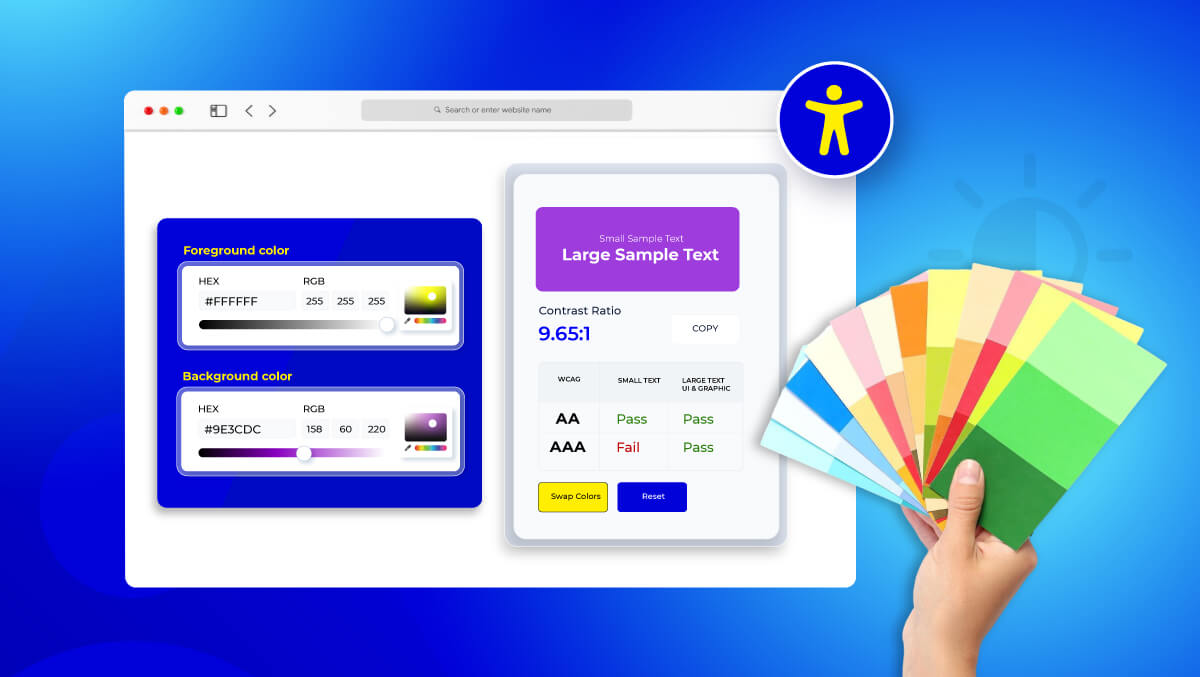
Labels, instructions, placeholders, and error messages must be readable.
Check contrast for:
- Field labels
- Help text
- Error messages
- Button text
- Disabled or inactive states
Weak input and focus visibility - WCAG 1.4.11
Low-contrast borders, outlines, or focus states can make form controls difficult to identify.
Improve:
- Input borders
- Checkbox and radio button visibility
- Focus indicators
- Error states
- Selected states
Keyboard Access and Focus
Keyboard accessibility failures - WCAG 2.1.1
Users must be able to complete the form without a mouse.
Test keyboard access for:
- Text fields
- Dropdowns
- Checkboxes
- Radio buttons
- Date pickers
- File uploads
- Payment fields
- Submit buttons
- Modal dialogs
Incorrect or hidden focus order - WCAG 2.4.3, 2.4.7, 2.4.11
Illogical tab order or hidden focus states can interrupt form completion.
Forms should have:
- A logical focus sequence
- Visible focus indicators
- Focus states that are not blocked by sticky headers or overlays
- Correct focus movement after errors, modal actions, and successful submissions
Touch, Voice Control, and Predictable Behavior
Label and touch target issues - WCAG 2.5.3, 2.5.8
Voice-control users may struggle when the accessible name does not match the visible label. Mobile users may also struggle with small touch targets.
Fix this by:
- Matching visible labels with accessible names
- Increasing small touch targets
- Giving enough spacing between controls
- Testing labels with assistive technology
Unexpected form changes - WCAG 3.2.2
Automatic submissions, page changes, or field changes can confuse users and interrupt workflows.
Avoid:
- Auto-submitting forms without warning
- Changing pages after field selection
- Moving focus unexpectedly
- Updating form content without clear explanation
Error Handling and Authentication
Poor error handling - WCAG 3.3.1, 3.3.2, 3.3.3
Users need to understand what failed, where it failed, and how to fix it.
Accessible error handling should include:
- Clear field-level errors
- Text-based explanations
- Correction guidance
- Error summaries for multiple failures
- Preserved form data after failed submission
Repetitive entry and authentication barriers - WCAG 3.3.7, 3.3.8
Repeated data entry and inaccessible authentication flows can increase abandonment.
Forms should:
- Reuse information users have already entered
- Avoid unnecessary re-entry
- Support accessible login and verification methods
- Avoid authentication steps that depend only on memory, puzzles, or inaccessible interactions
Assistive Technology Support
Missing name, role, and value - WCAG 4.1.2
Custom form controls can fail with screen readers if they do not expose the correct name, role, and value.
Use:
- Semantic HTML where possible
- Correct ARIA patterns only when needed
- Screen reader testing for custom controls
- Validation for dynamic form states, such as expanded, selected, checked, or invalid
Why This Matters
These WCAG criteria show why form accessibility cannot be handled with a badge, overlay, or one-time visual review. Businesses need to find the violation, fix the source-code issue, and prove the current compliance state.
WCAG Form Remediation: Code Patterns That Survive Audit
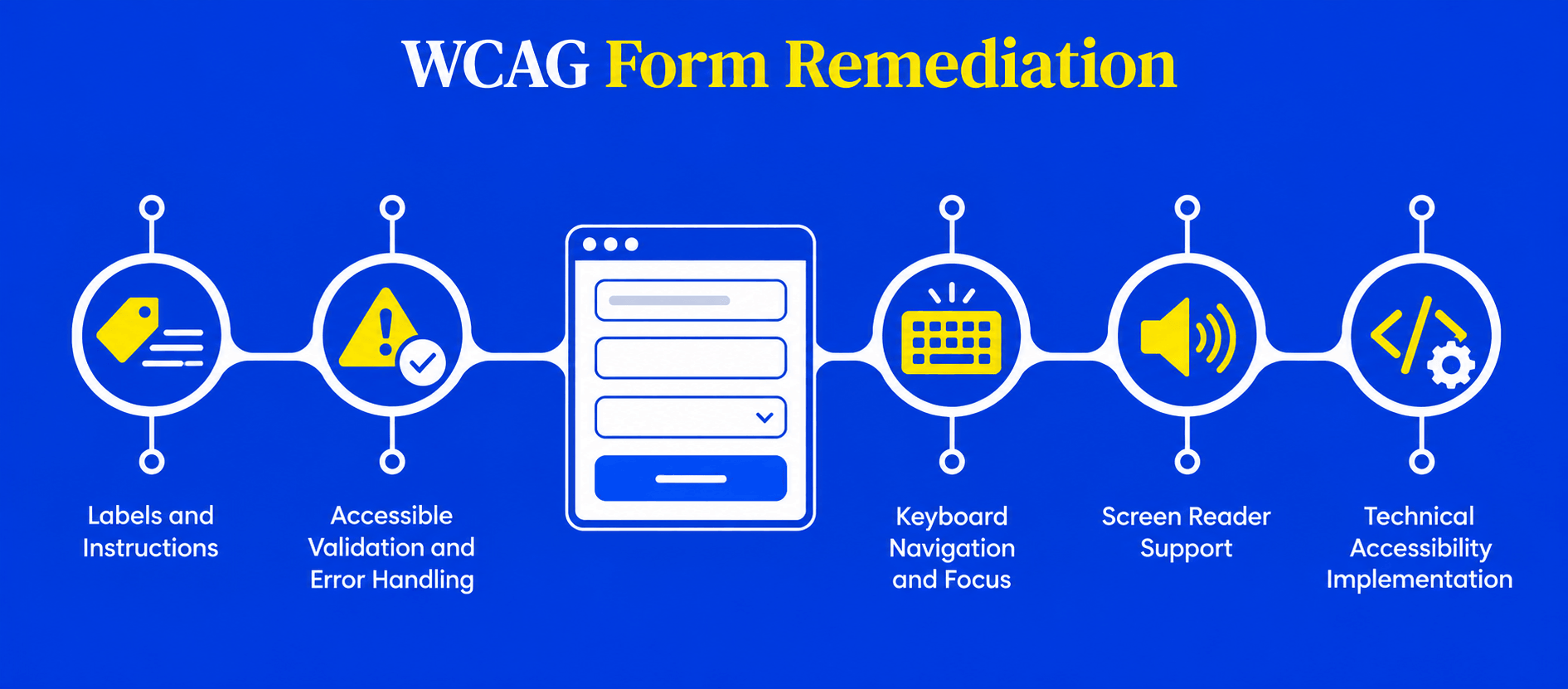
Accessible forms need more than clean visual design. Labels, validation, keyboard access, focus management, and screen reader behavior all affect whether users can complete checkout, signup, payment, account access, or lead forms.
Labels and Instructions
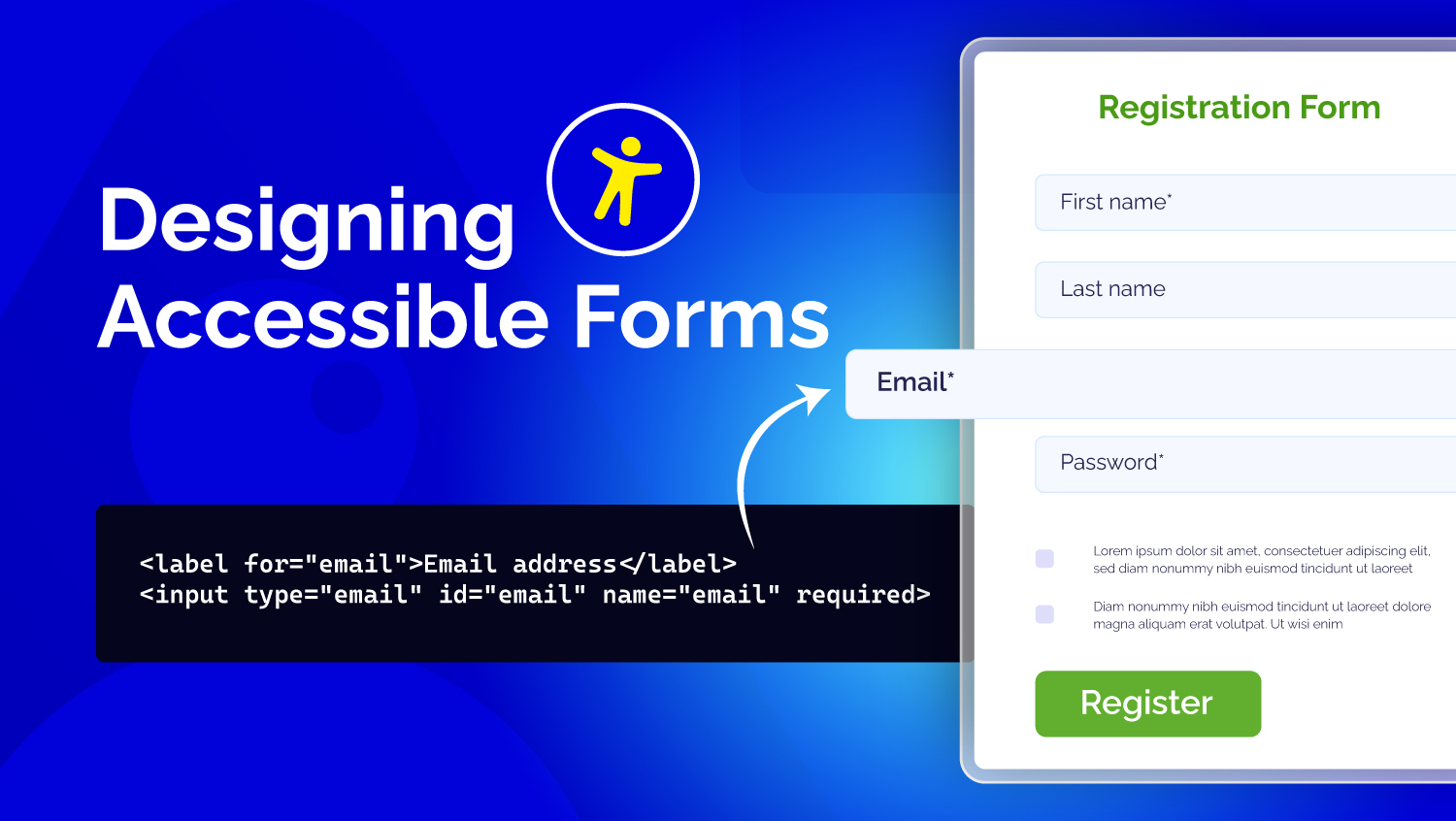
Every form field should have a visible label that is programmatically connected to the input with matching for and id attributes.
<label for="email">Email address</label>
<input type="email" id="email" name="email" autocomplete="email">
[WCAG 1.3.1 + 4.1.2] - The for/id match creates a programmatic relationship that passes automated audits and screen reader testing. This is audit evidence.
Avoid using placeholders as the only label:
<input type="email" placeholder="Email address">
Placeholders disappear while users type and are not a reliable replacement for labels.
Accessible labels and instructions should:
- Connect labels and inputs correctly
- Clearly identify required and optional fields
- Explain formats for passwords, dates, phone numbers, and payment fields
- Match the visible label with the accessible name
Connect help text and errors using aria-describedby
<label for="password">Password</label>
<p id="password-help">Use at least 12 characters.</p>
<input
 type="password"
 id="password"
 name="password"
 autocomplete="new-password"
 aria-describedby="password-help"
>
Accessible Error Handling and Validation
Error handling failures can stop users from completing checkout, signup, payment, or contact forms. Accessible errors should:
- Identify the failed field
- Explain what went wrong
- Tell users how to fix it
Weak error message:
Invalid input.
Better error message:
Enter an email address in this format: name@example.com.
For multiple errors, add an error summary at the top of the form and link each item to the related field.
<div role="alert" aria-labelledby="error-summary-title">
 <h2 id="error-summary-title">There is a problem</h2>
 <ul>
   <li><a href="#email">Enter a valid email address.</a></li>
 </ul>
</div>

<label for="email">Email address</label>
<input
 type="email"
 id="email"
 name="email"
 aria-invalid="true"
 aria-describedby="email-error"
>
<p id="email-error">Enter a valid email address.</p>
Accessible validation should:
- Show inline errors near failed fields
- Include an error summary for multiple failures
- Move keyboard focus to the error summary after failed submission
- Use text-based errors instead of color alone
- Apply aria-invalid="true" only after validation fails
- Preserve entered form data after errors
- Avoid aggressive validation while users are typing
- Keep server-side validation as a fallback
Keyboard Navigation and Focus
A form is not accessible if it cannot be completed with a keyboard. Users should be able to reach and operate:
- Text inputs
- Checkboxes and radio buttons
- Dropdowns and date pickers
- File uploads
- Payment fields
- Submit buttons
- Modal dialogs
Keyboard-accessible forms need:
- Logical tab order
- Visible focus indicators
- No keyboard traps
- Focus movement to the error summary after failed submission
- Focus movement to confirmation messages after successful submission
- Proper focus return when modals close
- Focus states that are not hidden by sticky headers or overlays
Screen Reader Support
Screen reader testing confirms whether the form works beyond the visual interface. When a field receives focus, assistive technologies should announce:
- Field label
- Field role
- Current value
- Required or optional status
- Help text
- Error messages
- Correction instructions
Related inputs such as radio buttons and checkbox groups should use fieldset and legend.
<fieldset>
 <legend>Payment method</legend>
 <input type="radio" id="card" name="payment" value="card">
 <label for="card">Credit card</label>
 <input type="radio" id="paypal" name="payment" value="paypal">
 <label for="paypal">PayPal</label>
</fieldset>
Technical Implementation
Use semantic HTML wherever possible:
- form
- label
- input
- select
- textarea
- button
- fieldset
- legend
Use appropriate input types and autocomplete attributes:
<input type="email" autocomplete="email">
<input type="tel" autocomplete="tel">
<input type="search">
<input type="password" autocomplete="current-password">
Use ARIA only when necessary:
- aria-describedby for help text and errors
- aria-invalid="true" after validation failures
- Live regions for important dynamic updates
For React, Vue, Angular, and other frameworks:
- Keep IDs stable across renders
- Ensure labels remain connected to inputs
- Maintain correct aria-describedby relationships
- Manage focus correctly in modals and multi-step forms
- Preserve keyboard accessibility during route changes and dynamic updates
To check whether your forms follow these patterns, run a free accessibility checker and see which forms on your site fail accessibility checks.
High-Risk Forms That Generate Most ADA Lawsuits
Checkout forms generate the most ADA complaints. A single failed checkout not only costs immediate sales, it creates legal exposure. These failures usually affect critical journeys tied to conversions, revenue, onboarding, and customer support. When a form is inaccessible, the business impact is measurable and immediate.
The highest-risk form patterns include:
- Checkout and payment forms
- Login, registration, and password reset forms
- Multi-step application or onboarding flows
- Search filters and faceted navigation
- File upload components
- Date pickers and calendar widgets
- Custom dropdowns and select menus
- Newsletter and contact forms
- Conditional or dynamically revealed fields
- CAPTCHA and verification systems
- Third-party embedded forms and payment iframes
These components frequently fail because of:
- Missing or incorrect labels
- Broken keyboard navigation
- Incorrect focus order
- Invisible focus indicators
- Validation and error recovery issues
- Screen reader announcement problems
- Missing semantic structure
- Inconsistent behavior across devices and assistive technologies
Every high-risk form flow should be tested for keyboard-only usability, screen reader compatibility, focus management, error recovery, accessible labels, mobile accessibility, dynamic content announcements, and WCAG documentation.
E-commerce Checkout Accessibility and Revenue Risk
For e-commerce businesses, accessible checkout forms directly affect conversion and revenue recovery.
Checkout failures can interrupt purchases when customers are ready to pay. Inaccessible validation, poor keyboard support, broken payment fields, or unclear recovery guidance can increase cart abandonment and create legal exposure.
An accessible checkout flow should include:
- Accessible cart quantity controls
- Clear coupon and discount fields
- Guest checkout support
- Properly labeled shipping and billing fields
- Accessible address autocomplete
- Keyboard-accessible payment inputs
- Screen reader support for third-party payment iframes
- Logical review and confirmation steps
- Clear validation and recovery guidance
- Accessible order confirmation messaging
Third-party payment iframes and custom checkout experiences are high-risk because you cannot rely on their audit, your site is liable for failures in embedded payment systems.
Audit payment field labels, keyboard access, and error handling separately. If a third party's payment form fails WCAG, you still get sued.
A WCAG-compliant checkout protects revenue, reduces legal exposure, and creates an audit trail that defends you against ADA claims.
Testing and Documentation for Accessible Forms
Testing confirms whether a form is actually usable. Documentation proves the business addressed accessibility risk.
A proper form accessibility review should include:
- Automated scans for labels, contrast, ARIA, and WCAG issues, evidence that you ran baseline compliance detection.
- Keyboard-only testing from start to submission, proves the form works without assistive technology, part of your compliance record.
- Screen reader testing for labels, errors, help text, and confirmations
- Error recovery testing with preserved form data
- Mobile testing for touch targets, zoom, and input behavior
- Checkout and payment flow validation
- Post-deployment regression testing after updates or redesigns
Documentation should clearly record:
- Scope & Timeline: Form URL, test date, tester credentials - shows you took compliance seriously
- Baseline Audit: WCAG criteria tested, issues identified - proves you found problems
- Remediation Log: Fixes implemented, code changes, dates - proves you acted
- Retest Evidence: Post-fix verification, passing results, sign-off dates - proves the fix worked
- Known Limitations: Any intentional exceptions and why - shows transparency, reduces legal surprise
Without documented proof of remediation and retesting, you have no legal defense. Courts want to see: What did you find? What did you fix? When was it fixed? Did it stay fixed?
No documentation = you lose.
How Accesstive Handles Form Accessibility
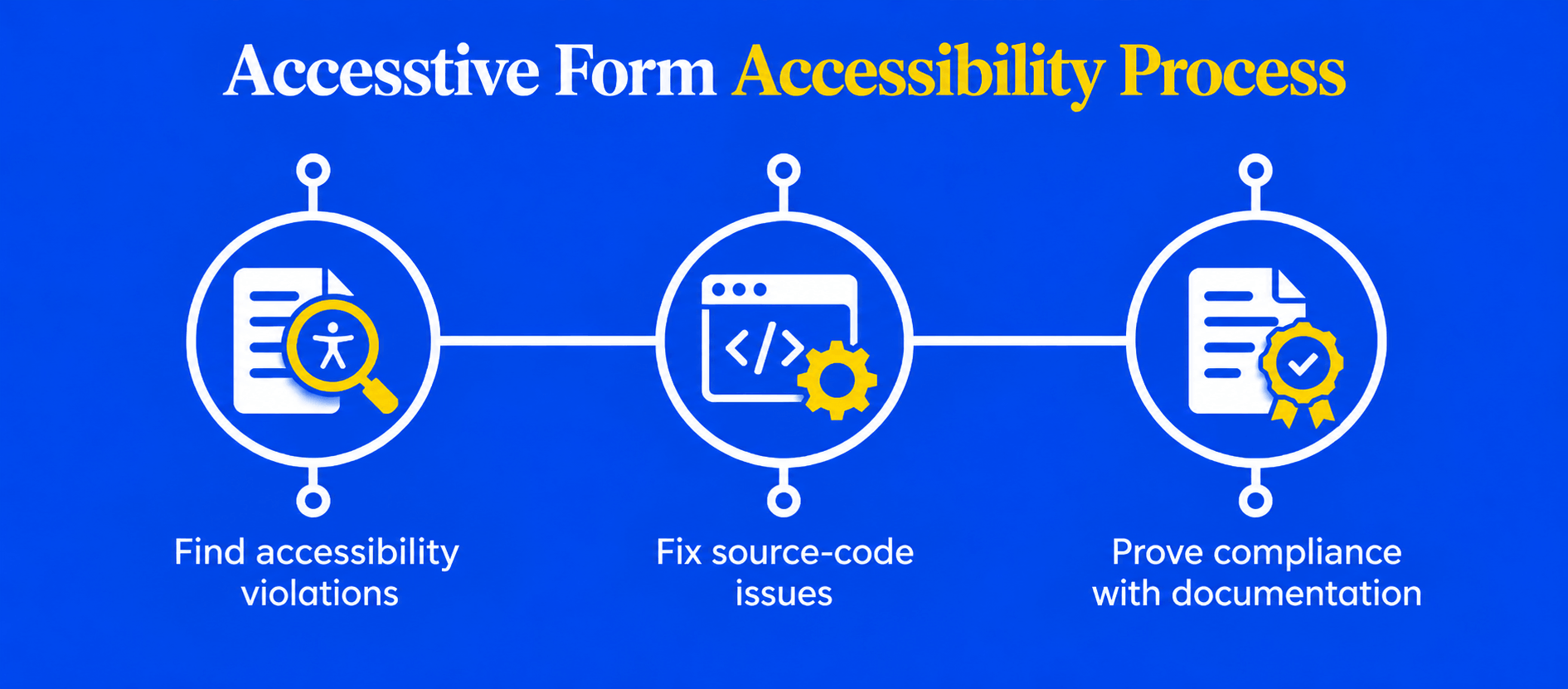
Accesstive is a compliance platform built around a simple process: Find > Fix > Prove.
Find
Accesstive scans every form on your site, labels, validation, keyboard navigation, error handling, third-party payment iframes, everything.
Unlike overlays, Accesstive actually detects the violations that appear in ADA lawsuits: missing labels, broken keyboard access, inaccessible errors, invalid ARIA. You get a complete inventory of what's broken.
Fix
Accesstive generates source-code remediation, not workarounds, not scripts, not overlays. We fix the HTML, the ARIA, the focus order, the validation flow. Each fix is mapped to the specific WCAG criterion it addresses.
You get the actual code to deploy.
Prove
Accesstive produces audit-ready compliance documentation: baseline audit, remediation log with timestamps, retest results, WCAG criteria addressed. This is the documentation that survives discovery and deposition.
You can show: what we found, when we found it, what we fixed, proof it stayed fixed.
This isn't an accessibility tool. It's a legal defense system. The Find > Fix > Prove framework ensures you can prove your compliance work in court. That's why businesses choose Accesstive when they receive a demand letter.
When you're 30–60 days from a legal deadline, you don't have time for 12-week manual audits. You need code fixes today and documentation ready for court tomorrow. Accesstive delivers both.
No badges. No overlays. No promises without proof. Just fixes and documentation that survive legal scrutiny.
Conclusion
Forms are where compliance becomes legally defensible.
If forms are broken, you lose revenue today and lose lawsuits tomorrow. A single inaccessible checkout form can cost thousands in cart abandonment plus hundreds of thousands in ADA settlements.
The right approach is simple: find the violations, fix the code, and prove the work.
Start your free accessibility checker to see which forms have compliance gaps. Accesstive generates the actual code fixes you need and produces audit-ready documentation, automatically. Try free for 14 days, no credit card required.
Accessibility Compliance. Done Right.
FAQs:
Do not ignore it. Document the reported issues, begin accessibility testing, fix high-risk barriers, and maintain records of remediation and retesting.
Keep audit reports, testing records, WCAG mappings, remediation history, and retest evidence showing what was fixed and when.
Not always. Most businesses start with accessibility testing and remediation, then involve legal counsel if a complaint, procurement review, or lawsuit occurs.
Yes, completely. Widgets do not fix source-code issues such as missing labels, validation errors, or keyboard barriers. In court, the widget badge is not considered proof of compliance.
24.9% of sued sites had widgets installed, the widget did not prevent the lawsuit. Your legal liability depends on whether forms are actually compliant, not whether a badge is visible.
Costs vary, but legal fees, settlements, remediation work, and reputational impact can become significantly more expensive than proactive accessibility fixes.
Businesses can still face risk when third-party payment providers or embedded checkout systems create accessibility barriers for users.
With DIY audit: 2–4 weeks just for the audit report, then 3–6 weeks for developers to fix code, then 1–2 weeks to retest. Total: 6–12 weeks.
With Accesstive: Form audit takes 1–2 days. Code fixes are generated the same day. You deploy fixes over 1–2 weeks depending on your development schedule. Total: 2–3 weeks start to finish.