Accessible Navigation Best Practices for Menus, Links, and Buttons
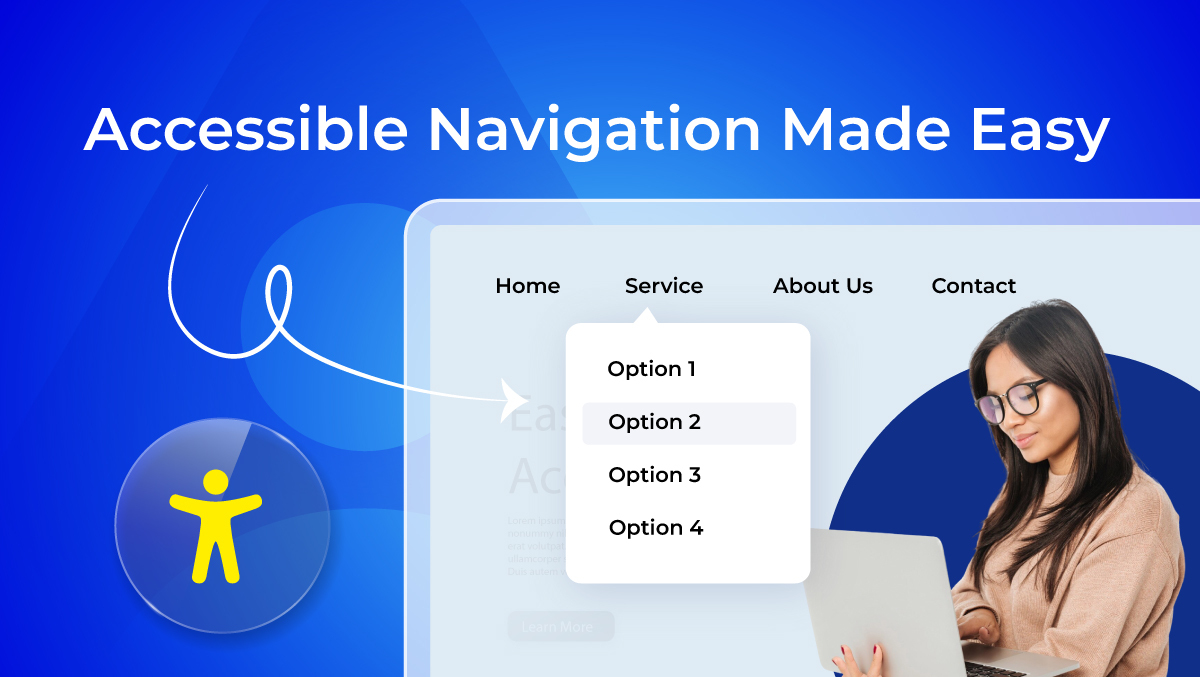
The process of creating accessible navigation requires website developers to design menus and links and buttons and breadcrumbs and skip links which allow all users to navigate the website through mouse and keyboard and screen reader technologies.
The system meets WCAG 2.2 guidelines which require content to maintain clarity and functional elements to operate and maintain predictable behavior across all devices. The system requires developers to create logical menu structures which provide users with descriptive links and accessible buttons and visible focus states and complete keyboard functionality.
The correct implementation of accessible navigation creates better user experiences which enhance SEO performance and enables all users to access and use website content without encountering obstacles.
What Is Accessible Navigation?
The term Accessible Navigation refers to designing your menus, links, buttons, breadcrumbs, search and skip links so that all users can traverse your website, regardless of device or ability. There are many forms of navigation, including:
- Menus (main, secondary, mobile)
- Text Links (including CTAs)
- Buttons (navigation functions, such as "Next", "Submit")
- Breadcrumbs (to indicate location)
- Search (to find specific content)
- Skip Links (to immediately go past repeated content)
The Importance of Navigation Accessibility
Accessible navigation allows different types of users to use your website in different ways:
- Keyboard Users: rely on Tab, Enter, and the arrow keys to navigate through menus and links.
- Screen Reader Users: need a clear structure, labelled elements and so-called "landmarks" to guide their use.
- Low Vision Users: need high contrast, scalable text and clearly visible focus states.
- Mobile/Touch Users: need large tap targets and simple interactions.
- Cognitive Users: need clear labels, predictable layout and consistent patterns.
By creating accessible navigation for these groups of users, it will be easier for all users to access and use your website.
The Differences Between Accessibility, Usability and SEO
Accessibility, Usability and SEO are closely related concepts, but they are not the same thing.
- Usability: The ease and efficiency of using navigation.
- Accessibility: Whether navigation is usable by all users (including users with disabilities).
- SEO: How clearly search engines can understand and crawl your structure
Accessible navigation improves usability and supports SEO by creating a logical, well-structured system, but it doesn’t guarantee rankings on its own.
How Website Navigation Should Be Structured
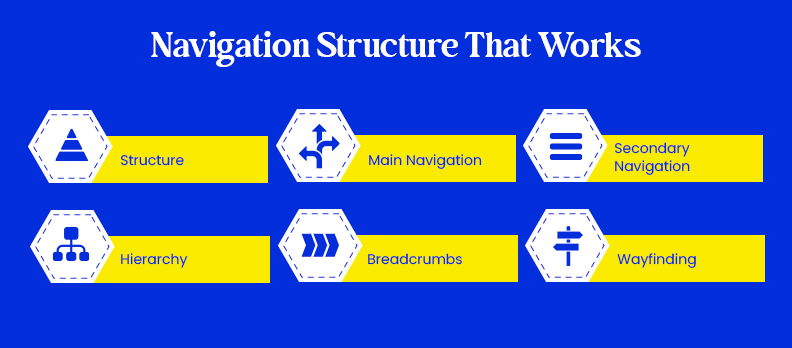
To make it easy for users to find content, navigation must be designed with a clear and simple hierarchy. This means that users will be able to access any piece of content from the main navigation in a maximum of three clicks.
Examples of categories in the main navigation:
- Services: Web Development, SEO
- Resources: Blog, Case Studies
- Support: Help Centers, Contact
Related categories in the secondary navigation:
- Main links: Header (Services, Pricing, Contact)
- Sub-links: FAQ, Policies, Help Center
Rule: Use the main navigation for core tasks and the secondary navigation to provide support for these tasks. Do not combine them.
Content Discovery Hierarchy
Keep navigation structured and organized, with:
- No orphan pages
- Depth of no more than three levels
- Clearly grouped related content
- Clearly marked labels
Discrimination
- Good: Home → Services → SEO
- Bad: Home → Services → Solutions → Offerings → Details
Use of Breadcrumb, Wayfinding
When users navigate using breadcrumbs, they will know where they are within the structure of the site. This helps them understand how to return to a previous page.
Best practice:
- Utilize an ordered list
- Clearly display the current page within the context of the breadcrumb trail
- Be consistent with the use of breadcrumbs throughout the entire website
Note:
- Breadcrumbs = user organization
- Sitemap = full navigation structure overview
Accessible Menu Types and Their Impact
Different menu types affect accessibility in different ways. Choosing the right pattern, and implementing it correctly, makes navigation easier for all users.
Quick Comparison
| Menu Type | Best Use Case | Accessibility Risk | Best Practice |
| Horizontal menu | Simple websites with a few main pages | Links can feel crowded, focus states may be missed | Keep proper spacing and use visible focus states |
| Sidebar menu | Content-heavy websites, admin panels, dashboards | Can create a poor experience on mobile devices | Group related sections and use responsive collapse |
| Dropdown menu | Websites with medium-level navigation complexity | Hover-only interaction, keyboard navigation issues | Support click + keyboard navigation with clear active states |
| Mega menu | Large websites like e-commerce or SaaS platforms | Too much information, confusing tab order | Use a structured layout with clear headings |
| Hamburger menu | Mobile website navigation | Hidden content, unclear menu controls | Use a real button with accessible labels and state changes |
Horizontal Navigation
Horizontal navigation is common in the header area of the website and is best used when there are simple navigation structures with few links. Best practice is:
- To maintain the same placement of the navigation items on each of the pages.
- To ensure there is enough space between the navigation items so users do not accidentally misclick.
- To ensure there is a visible focus state for users that navigate by keyboard.
Sidebar Navigation
Sidebar navigation is a good option for dashboards or websites that are rich with content. Best practice is:
- To group links with meaningful headings.
- To ensure there is a responsive behavior.
- To give the user the ability to collapse and expand on mobile devices to reduce clutter.
Dropdown Menus
Dropdown menus can be a useful way to organize sub-pages within websites, but are often used incorrectly. Must have requirements for dropdown menus are:
- Do not rely on hover only.
- Allow users to navigate with a keyboard in addition to using the mouse.
- Provide clear open and close states.
- Maintain a logical focus order in the dropdown (no jumping or trapping).
Mega Menus
Mega menus are best used on large sites with numerous categories of items. Best practice is:
- To use structured grouping with clearly defined sections.
- To provide headings inside of the mega menu for clarity.
- To not provide too many links so as to overwhelm the user.
- To ensure that the tab flow is smooth through the menu (no “tab chaos”).
Hamburger / Mobile Menus
Common for mobile but can hide important navigation.
Accessibility requirements:
- Use a real <button> (not a <div>)
- Include aria-expanded to show state
- Provide a visible label or accessible name
- Allow ESC key to close
- Return focus to the trigger button when closed
Well-implemented menus ensure navigation works for both mouse and keyboard users, across all devices.
Accessible Links vs Buttons
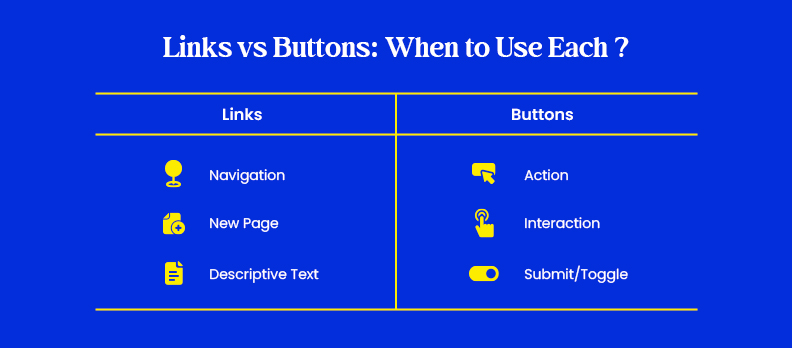
Using the correct element is critical for both accessibility and usability. Links and buttons are not interchangeable, they serve different purposes.
When to Use a Link
Use a link (<a>) when the action navigates to a new page or resource.
Examples:
- Go to Pricing page
- Open a blog article
- Download a PDF
Rule: If it changes the URL → use a link
When to Use a Button
Use a button (<button>) for actions on the current page.
Examples:
- Open/close a menu
- Toggle a dropdown
- Submit a form
- Load more content
Rule: If it triggers an action → use a button
Descriptive Link Text
Links should clearly describe their destination, especially for screen reader users.
Avoid:
- “Click here”
- “Read more”
Use:
- “View pricing plans”
- “Download accessibility checklist”
Tip:
Links should make sense even when read out of context.
Icon-Only Elements
Icons without text must still be understandable to assistive technologies.
Requirements:
- Provide an accessible name
- Use aria-label or visible text
- Add alt text for image-based icons
Example:
<button aria-label="Open menu">
 <img src="menu-icon.svg" alt="" />
</button>
Without proper labels, icon-only controls become invisible to screen reader users.
Accessible Menus in Practice
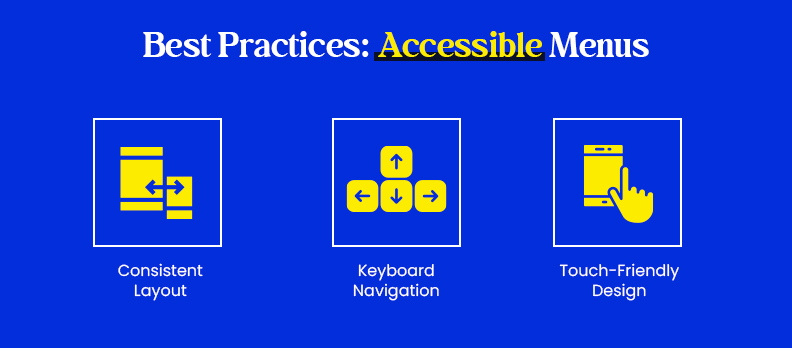
Make menus predictable, keyboard-friendly, and mobile-ready. Small implementation details have a big impact on usability.
Predictable Navigation Patterns
Keep navigation consistent so users don’t have to relearn it on every page:
- Place the main menu in the same position (usually header)
- Keep the same order of items across all pages
- Use consistent labels (same label = same destination)
- Group related items logically (e.g., Products, Pricing, Support)
Full Keyboard Support
Menus must work without a mouse.
Support these controls:
- Tab / Shift + Tab: Move between items
- Enter / Space: Open links, toggle menus
- Arrow keys: Navigate within dropdowns (if applicable)
- Esc: Close open menus
Also ensure:
- Visible focus indicators at all times
- No keyboard traps (users can always move forward/back)
- Logical focus order (top → down, left → right)
Mobile Accessibility
Design menus that are easy to use on touch devices:
- Minimum 24×24px tap targets (WCAG 2.2 AA)
- Add spacing between items for thumb interaction
- Support zoom up to 200% without breaking layout
- Use collapsible/accordion menus to reduce clutter
- Ensure text remains readable and doesn’t overlap
Accessible menus should work smoothly across keyboard, mouse, and touch, without friction or confusion.
Skip Links, Landmarks, and Search
These elements help users navigate faster, especially those using keyboards or screen readers.
Skip Navigation Links
Skip links allow users to bypass repetitive navigation and jump straight to content.
Best practices:
- Add a “Skip to main content” link
- Place it as the first focusable element in the DOM
- Make it visible on focus (even if hidden by default)
Example:
<a href="#maincontent" class="skip-link">Skip to main content</a>
<main id="maincontent">
 …
</main>
Page Landmarks
Landmarks define key areas of the page so assistive technologies can navigate quickly.
Use semantic HTML:
- <header>: Top section
- <nav>: Navigation menus
- <main>: Primary content
- <footer>: Bottom section
Enhance with labels when needed:
<nav aria-label="Main navigation">
 …
</nav>
Tip:
Use only one <main> per page and keep landmark roles clear.
Accessible Search
Search should be easy to find and usable by all users.
Requirements:
- Always include a visible label
- Provide a submit button (don’t rely on Enter only)
- Use role="search" for assistive tech
Example:
<form role="search" aria-label="Site search">
 <label for="search">Search</label>
 <input type="text" id="search" name="q" />
 <button type="submit">Search</button>
</form>
Well-implemented skip links, landmarks, and search improve navigation speed, clarity, and accessibility across the entire site.
Design & Development Checklist
Make this section quick to scan and easy to implement.
Structure & Hierarchy
- Use proper heading levels (h1 → h2 → h3)
- Keep navigation placement consistent across all pages
- Add breadcrumbs with correct structure and current page indication
- Ensure no orphan pages (every page is reachable)
Menus & Interaction
- Dropdowns must have clear open/close behavior (not hover-only)
- Support full keyboard flow (Tab, Enter, Arrow keys, Esc)
- Maintain logical focus order
- Ensure hidden content is not focusable (e.g., collapsed menus)
Links & Buttons
- Use descriptive link text (no “click here”)
- Use the correct element (<a> for navigation, <button> for actions)
- Ensure minimum 24×24px target size (WCAG 2.2 AA)
- Provide clear hover and focus states
Readability & Visuals
- Minimum font size: 16px
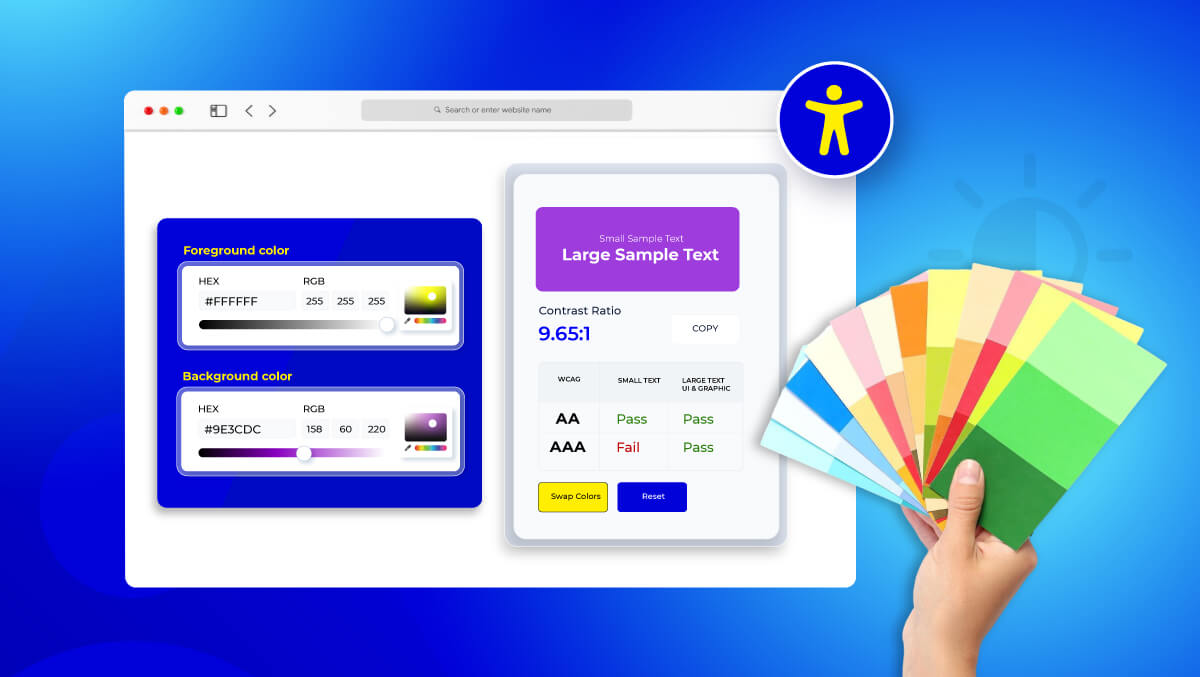
- Maintain contrast ratio ≥ 4.5:1 for text
- Use adequate spacing and padding between elements
- Support zoom up to 200% without layout breaking
Assistive Tech Compatibility
- Use semantic HTML first (header, nav, main, footer)
- Apply ARIA only when necessary (don’t overuse it)
- Ensure UI changes (e.g., menu open/close) are announced to screen readers
- Provide alt text or labels for icons and controls
- Properly label forms and search fields
This checklist ensures your navigation is usable, accessible, and technically sound across devices and assistive technologies.
Common Accessible Navigation Mistakes
High-impact issues that break accessibility, and how to fix them fast:
- Hover-only dropdowns: Add click + full keyboard support (Enter, Arrow keys, Esc)
- “Click here” links: Use descriptive text (e.g., “View pricing plans”)
- Hidden focus states: Ensure visible focus indicators for all interactive elements
- Inconsistent navigation: Keep same position, order, and labels across pages
- Small tap targets: Use minimum 24×24px with proper spacing
- Icon-only without labels: Add aria-label or visible text
- Broken keyboard navigation: Fix tab order, avoid traps, support Esc to exit menus
How to Test Navigation Accessibility
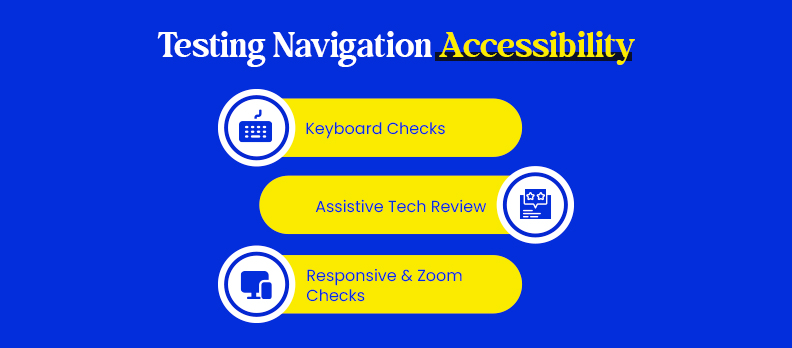
Testing ensures your navigation actually works, not just in theory.
Keyboard Testing
- Tab through all menus and links
- Open/close dropdowns using Enter / Space / Esc
- Check logical focus order (no jumps or traps)
- Ensure all elements are reachable without a mouse
Screen Reader Testing
- Verify link and button labels are clear
- Check landmarks (nav, main, etc.) are announced
- Ensure menu states (expanded/collapsed) are communicated
- Confirm navigation makes sense when read linearly
Zoom & Mobile Testing
- Test at 200% zoom (no layout breaks)
- Check responsive menus (collapse/expand correctly)
- Validate tap target sizes and spacing
- Ensure readability across screen sizes
Real-World Validation
Combine manual checks with targeted tools, each solving a different problem:
- Use Access AI Audit or the Free Accessibility Checker to quickly detect issues like missing labels, poor link text, or broken navigation structure.
- Validate real user adaptability with Access Widget, which helps test how navigation behaves with changes like text scaling, contrast, and interaction modes.
- Keep navigation stable over time using Access Monitor, so new updates don’t reintroduce accessibility issues.
- For deeper insights or complex navigation systems, use expert-led Access Service to identify patterns and fix advanced problems.
Best approach: Tools help you find issues faster, but real accessibility comes from combining them with manual testing and actual user feedback.
WCAG Criteria Relevant to Navigation
Consistent Navigation (WCAG 3.2.3)
Navigation menus should appear in the same location and order across pages.
Example: Header menu stays identical on all pages so users don’t relearn navigation.
Focus Visible (WCAG 2.4.7)
Interactive elements must show a clear visual focus when using a keyboard.
Example: A visible outline appears when tabbing through menu links.
Target Size (Minimum) (WCAG 2.5.8)
Interactive elements must be large enough to tap or click easily (≥24×24px for AA).
Example: Mobile menu buttons are spaced and sized for thumb interaction.
Reflow (WCAG 1.4.10)
Content must adapt without breaking when zoomed up to 200%.
Example: Navigation collapses into a usable mobile menu instead of overlapping.
Info & Relationships (WCAG 1.3.1)
Structure must be clear in code (headings, lists, nav landmarks).
Example: Menus use proper <nav> and <ul> so screen readers understand hierarchy.
Name, Role, Value (WCAG 4.1.2)
UI elements must expose their purpose and state to assistive tech.
Example: Dropdown button announces aria-expanded="true" when open.
Bypass Blocks (WCAG 2.4.1)
Users must be able to skip repetitive navigation.
Example: A “Skip to main content” link appears on focus at the top of the page.
Inclusive Content Practices for Navigation
Clear and consistent navigation labels help users understand where each link leads without confusion. Focusing on simple wording, consistency, and clarity improves accessibility for all users, especially those using assistive technologies.
Use plain language
Navigation labels should be direct and easy to understand at a glance. Avoid creative or vague phrases that require interpretation.
Example: Use “Contact Us” instead of “Engage With Us” so users immediately know what to expect.
Maintain consistency
Use the same labels for the same destinations across your entire site. Changing terminology creates confusion and slows navigation.
Example: If a section is called “Resources” in the main menu, keep that label consistent everywhere.
Multilingual navigation
Make language options clear, visible, and easy to switch. Users should not struggle to find content in their preferred language.
Example: Use simple labels like “EN / DE” or “English / Deutsch” and keep them in a consistent location, such as the header.
Linked media clarity
Clearly describe links that lead to media or downloads so users know what will happen next.
Example: Use “Watch Product Demo (Video)” or “Download Setup Guide (PDF)” instead of generic labels like “Learn More.”
Conclusion
Accessible navigation works when structure, clarity, and usability come together.
Keep your navigation simple and consistent so users always know where they are and where to go next. Use clear labels, logical hierarchy, and predictable placement across pages. Make sure everything works with a keyboard, not just a mouse, and that focus states are always visible.
Most importantly, test your navigation regularly, keyboard testing, screen readers, and real user behavior will quickly reveal gaps. Small improvements here make your entire site easier to use for everyone.
FAQs
Accessible navigation ensures all users can move through a website easily, including those using keyboards, screen readers, or touch devices. It includes menus, links, buttons, breadcrumbs, and skip links that are clear and usable.
Links are used for navigation (going to a new page or resource). Buttons are used for actions (opening menus, submitting forms, toggling content). Using the wrong element can break accessibility.
Skip links allow users to bypass repetitive navigation and jump directly to the main content. This is especially important for keyboard and screen reader users.
Dropdowns should not rely on hover only. They must work with keyboard inputs (Tab, Enter, Arrow keys), have clear open/close states, and maintain logical focus order.
Key guidelines include consistent navigation, visible focus states, proper structure (headings and landmarks), keyboard accessibility, and bypass blocks like skip links.
Test using a keyboard (Tab through all elements), check with screen readers for labels and states, zoom to 200% for layout issues, and validate with real users where possible.
WCAG 2.2 recommends a minimum target size of 24×24px (AA). Larger targets improve usability, especially on touch devices.
Yes, if implemented correctly. Use a real <button> with an accessible label, support keyboard interaction, include aria-expanded, allow ESC to close, and return focus to the trigger after closing.
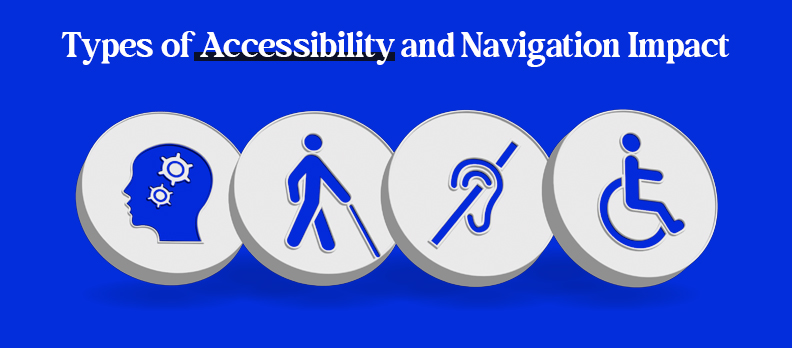
Visual (low vision, color contrast), auditory (captions, transcripts), motor (keyboard and touch support), and cognitive (clear language and predictable layouts).
Primary navigation is typically in the header, with secondary navigation in sidebars or footers. Placement should remain consistent across all pages.