How to Write Accessible Content? Heading, Plain Lang and Alt Text
If your words aren’t reaching everyone, they’re not doing their job. Good writing isn’t just smart, it’s accessible.
If people cannot read or understand your words, it does not matter if they are good. Words that are easy to get will let all the words work for everyone. It is not about more rules; it is about writing in simple, plain language so more people can get it.
Read this guide and learn how to write words that all can get!
Why Accessible Content Matters?
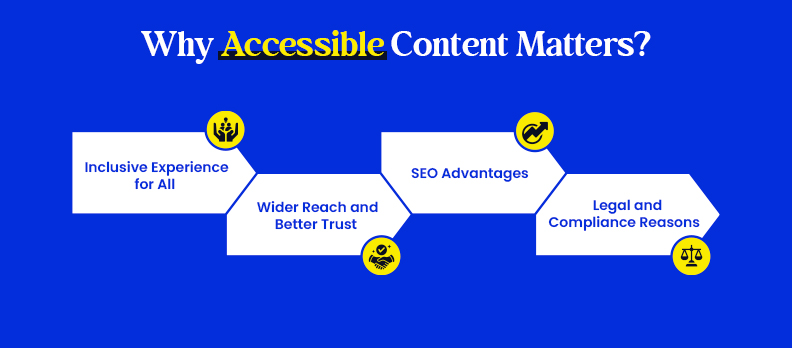
Accessible content helps your message be clear and usable by all people, even those with disabilities. It helps you get to more readers and get their trust. Tools like Access Accy help ensure your content remains accessible by identifying issues early and supporting ongoing improvements without disrupting your workflow.
Here's why it's a big deal:
1. Inclusive Experience for All
Content that is easy to access takes away the walls for people who need screen readers, captions, or prefer clear text. It makes sure everyone can read, get, and play with your content easily.
2. Wider Reach and Better Trust
When your content is easy to use, more people can get with it. It shows that your brand cares about including all people and that it is kind to every visitor. This will help you get more trust and make your name stronger.
3. SEO Advantages
Good access makes SEO better. Easy-to-read titles, alt text, and fit content help search engines get your page better. It can also make people stay longer and like your site more.
4. Legal and Compliance Reasons
Access is part of a lot of digital laws like WCAG, the ADA, and the EU Web Accessibility Directive. Keeping up with these rules helps you be on the right side and not get in trouble.
How to Write Accessible Content?
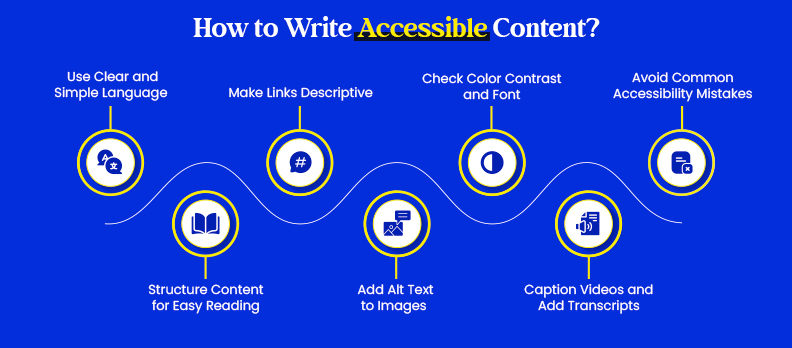
Writing easy-to-read content means keeping your message simple, neat, and something folks can get. These easy steps will make your writing readable, simple, and good for all users.
1. Use Clear and Simple Language
- Don't use fancy words or long words that folks might not get.
- Write shorter sentences and talk in a more fun, chatty way.
- Example: Say our team made the report instead of the report being made by someone else.
If you want to test the clarity and reading level of your writing, you can use tools like the Access Widget by Accesstive, which helps you identify areas to simplify and improve accessibility.
2. Structure Content for Easy Reading
Having your writing laid out well helps both folks and screen readers use it.
- Use bigger, better headings (H1, H2, H3) for neatness.
- Keep your paragraphs short and one thing at a time.
- Use lists with points or numbers to make it easy.
- Add summaries or highlights if a long part is there.
3. Make Links Descriptive
- Don't just put click here or read more.
- Say what your links do in words that folks can get.
- Example: “Download my list for accessibility” or “Read the whole accessibility guide”.
- This makes it easier for folks to use and helps with Google, too, and it helps folks who use screen readers.
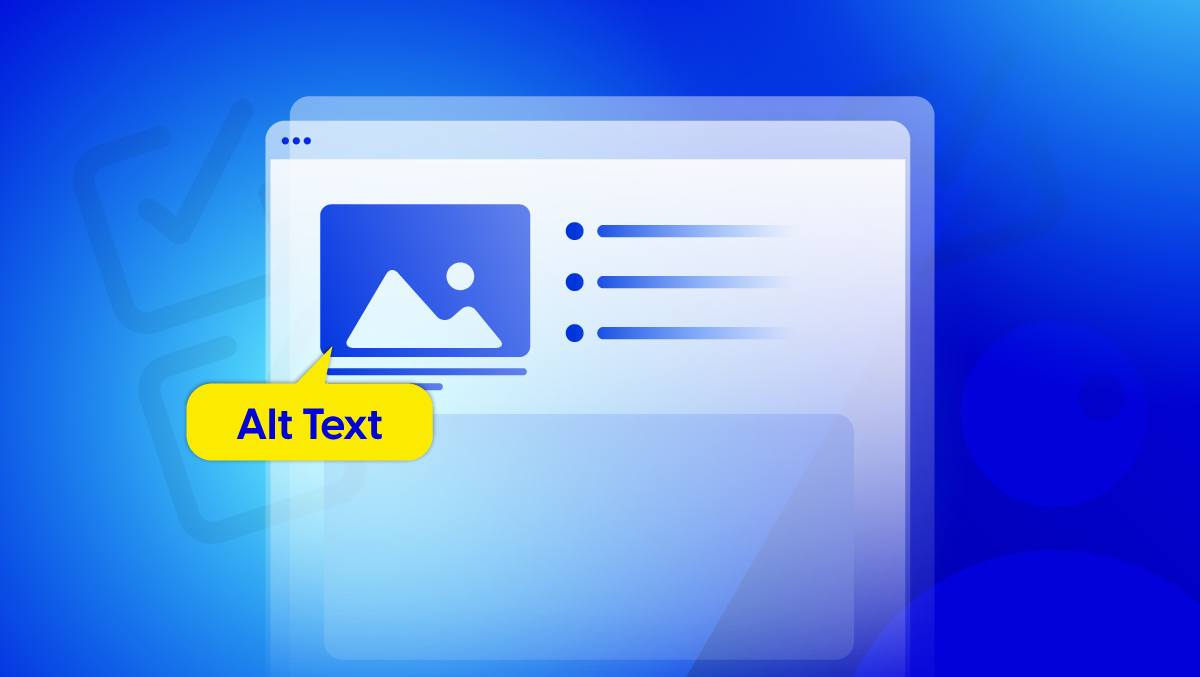
4. Add Alt Text to Images
- Put Alt Text on your images
- Alt text helps folks who use screen readers know what your images mean.
- Keep it short and tell what the picture is for, not just what it looks like.
- Example: “Say a photo of a laptop, a marketer looks at website accessibility data” instead of “a photo of a computer screen”.
- Try to make it less than 125 letters.
- Adding accurate alt text also helps teams identify visual accessibility gaps during audits. Tools like Access Audit can automatically detect missing or ineffective alt text and flag images that need improvement.
5. Check Color Contrast and Font
- Good colors make it easier for folks to read.
- Use dark words on a white or light background.
- Use clean fonts that are not fancy and make sure your words are 16px or larger.
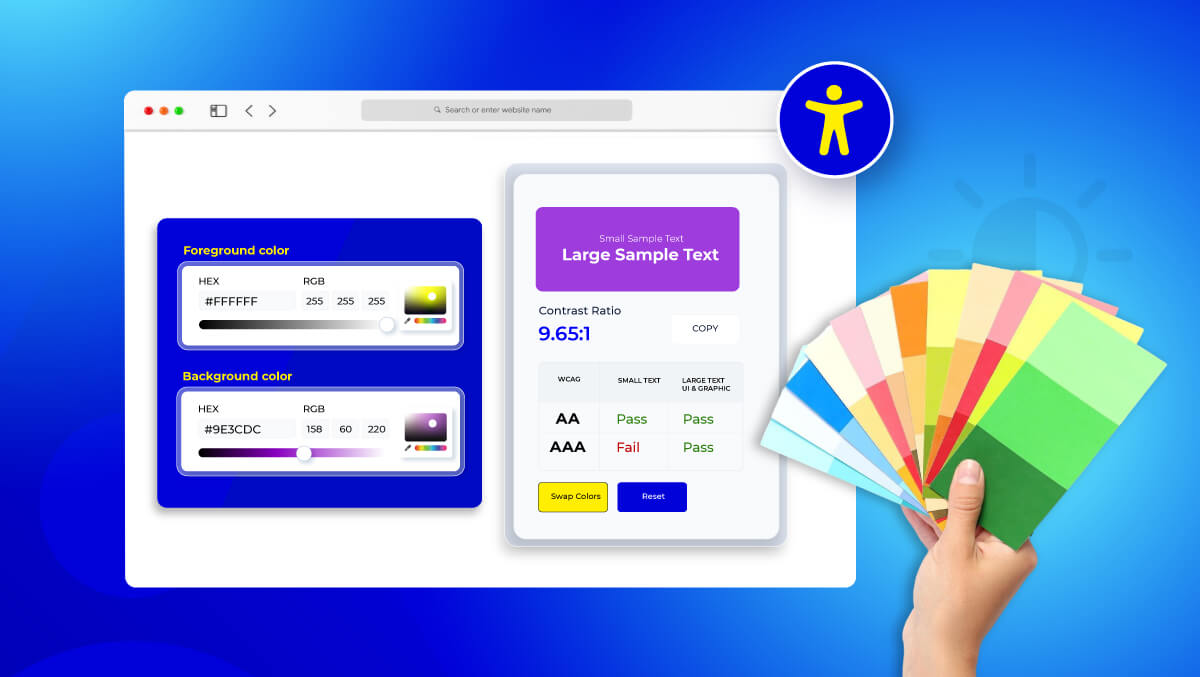
You can check your site’s color contrast and typography compliance using Accesstive’s Color Contrast Checker tool.
6. Caption Videos and Add Transcripts
- Put captions on your videos and transcribe your audio content.
- This helps to identify deaf or hard-of-hearing difficulty, and it helps folks who read without making noise.
7. Avoid Common Accessibility Mistakes
- Don’t rely on color alone to communicate meaning.
- Don’t overuse bold or italic text; it can reduce readability.
- Avoid using only PDFs; always provide HTML versions for better accessibility.
- If you’re unsure where these issues exist across your site or content, Access Services can help teams identify, prioritize, and fix accessibility gaps through expert audits and remediation support.
Conclusion
When your words are clear, your design is structured, and your visuals are described, you’re opening doors for more people to engage with your brand. Accessible content writing improves user experience, SEO, and trust, all while supporting digital inclusion.
If you’re unsure how accessible your content really is, try running a free accessibility audit. It helps you identify content barriers, readability issues, missing alt text, and other elements that affect accessibility.
So you can make your content welcoming for everyone!
FAQs
Accessible content means writing and designing text so everyone can read it, learn from it and interact with it without difficulty, including people with disabilities.
It makes sure your message reaches every reader, improves usability, helps inclusion, and can boost your SEO. Accessible content can also help your business meet accessibility requirements.
Use simpler words, shorter sentences, big and obvious headings, and clear links. Include alt text for pictures, use contrasting colors, and add captions or transcripts for video and audio materials.
- Using lengthy or complex sentences.
- In Add Images without Alt text.
- Color alone is meaningful.
- Trying to insert captions to videos or transcripts on podcasts.
- Published PDF-only content instead of HTML pages.
Yes. The search engines like well-structured, readable, and inclusive content. It is easier for search engines to learn the purpose of your page by applying accessibility practices such as correct headings, alt text and clean links.