Accessible Website for Motor Disabilities
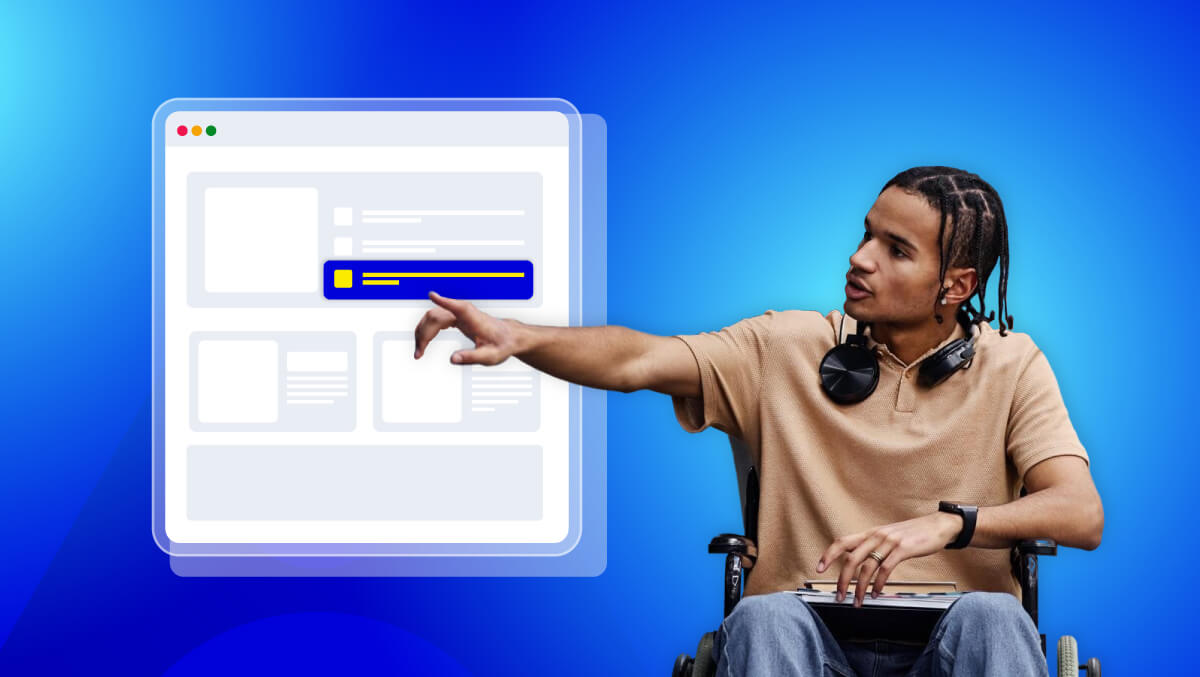
Imagine trying to click a button or fill out a form, however, your hands do not do what you want. For individuals living with a motor disability, something as simple as this can become a daily battle, and a normal website can become an irritating barrier.
In a report by the World Health Organization, over 1 billion people live with disabilities, which is about 16% of our global population. Many experience barrier when trying to navigate a digital platform that does not consider accessibility.
Web accessibility means developing websites that everyone can use, regardless of ability. Everyone has equal access to information, communication, and opportunities, when we factor in persons with motor impairments.
In our digital-first society, accessibility is not just an added option, accessibility is a necessity. In this blog I will discuss how to design an accessible website for motor disabilities, therefore we are one step closer to a more inclusive digital landscape for all.
Understanding Motor Disabilities
Designing accessible websites begins with understanding the people who use them. Motor disabilities affect how individuals move, control, and coordinate their muscles, which directly impacts how they interact with digital interfaces.
What Are Motor Disabilities?
Motor disabilities refer to physical impairments that limit a person’s ability to control or coordinate voluntary movements. These conditions can be congenital (from birth) or acquired later in life due to injury, illness, or aging.
They may affect:
- Fine motor control (e.g., using a mouse or touchscreen)
- Gross motor skills (e.g., body movement and posture)
- Muscle strength and endurance
- Coordination and dexterity
Motor disabilities vary widely in severity; some users might manage with adaptive tools, while others depend entirely on assistive technologies like voice control or eye-tracking.
Common Examples of Motor Disabilities
| Condition | Description | Impact on Digital Use |
| Cerebral Palsy | A group of disorders affecting movement, balance, and muscle tone. | Difficulty using a mouse or touchscreen; reliance on keyboard or speech input. |
| Muscular Dystrophy | Progressive muscle weakness and loss of control. | Limited hand movement; preference for voice navigation or adaptive switches. |
| Arthritis | Inflammation of joints causing pain and stiffness. | Challenges with repetitive clicking or small clickable areas. |
| Spinal Cord Injury (SCI) | Damage to the spinal cord leading to partial or complete paralysis. | May require alternative input devices like head pointers or sip-and-puff systems. |
| Multiple Sclerosis (MS) | Affects nerve signals between the brain and body. | Inconsistent muscle control; difficulty with precision tasks. |
| Parkinson’s Disease | Causes tremors, stiffness, and slowness of movement. | Struggles with cursor control and accurate selection. |
Each of these conditions influences how users navigate websites and interact with on-screen elements, making accessibility design essential.
How Motor Impairments Affect Digital Interactions
Motor impairments can greatly affect how users interact with the web. Some of the common struggles that may result from motor impairments include:
- Problems with the use of a mouse. Many users cannot make small precise movements like clicking a tiny button or dragging an item.
- Reliance on keyboard navigation. For many users, keyboard shortcuts and tabbing become the main navigation experience.
- Fatigue from excessive repetitive movement. Many web experiences require multiple clicks or people must scroll for a long time in one direction, which can be tiring.
- Limited ability to control gestures. If using a touchscreen device, swiping, pinching, or double-tapping may not be a doable gesture.
- Difficulty responding to time constraints. Timed forms or dynamic moving elements may lead to pressure or an inaccessible experience.
By understanding these limitations, designers and developers can implement user experiences for people with physical abilities at all levels to ultimately make the digital ecosystem inclusive.
The Challenges Faced by Users with Motor Disabilities
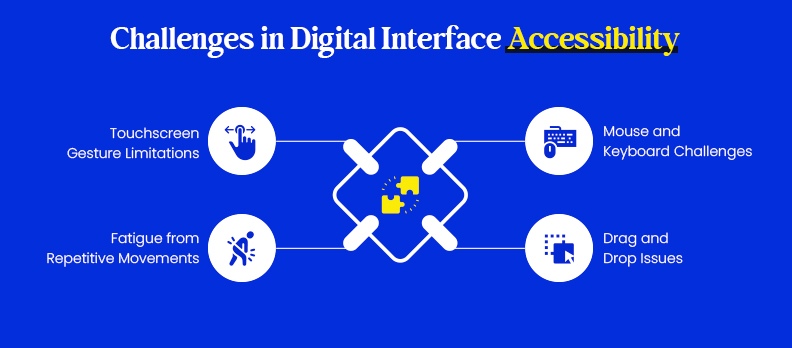
People with motor disabilities encounter unique barriers when navigating digital interfaces. These challenges often stem from designs that assume users can perform precise, rapid, or repetitive actions with ease.
| Challenge | Description | Inclusive Design Tip |
| Using a Mouse or Keyboard | Users with limited hand coordination find it difficult to click small targets or use multiple keys at once. | Support full keyboard navigation and voice input. |
| Drag-and-Drop or Small Clickable Areas | Requires precision many users can’t maintain, leading to accidental actions. | Provide larger buttons, alternative actions, and clear spacing. |
| Fatigue from Repeated Movements | Repetitive clicking or scrolling causes pain or exhaustion. | Enable shortcuts, auto-fill, and predictive input. |
| Touchscreen Gestures | Swiping, pinching, or tapping may be impossible for users with tremors or stiffness. | Offer on-screen controls and gesture alternatives. |
Designing for Motor Accessibility: Best Practices
Use these practical guidelines, each with small, copy-pasteable snippets, to make your site easier for people who navigate without a mouse or with limited precision.
Optimize for Keyboard-Only Navigation
Users with motor impairments often rely on keyboards instead of a mouse.
Ensure every feature is accessible via Tab, Enter, and Space keys.
Tip:
Add clear focus styles and “Skip to content” links.
<a href="#main" class="skip-link">Skip to content</a>
:focus-visible { outline: 2px solid #000; }
Ensure Sufficient Clickable / Tap Areas
Tiny buttons or close-together icons are hard to use. Make them larger and spaced out.
Tip:
Follow WCAG’s 44×44 px guideline.
button, a { min-width: 44px; min-height: 44px; margin: 4px; }
Avoid Time-Based Interactions
Timed forms or auto-closing pop-ups frustrate users with limited mobility.
Tip:
Give users a way to pause or extend timers.
<button onclick="extendTimer()">Extend Time</button>
<script>
function extendTimer(){ clearTimeout(timer); }
</script>
Reduce the Need for Precision Gestures
Actions like drag-and-drop or pinching can be difficult. Provide button alternatives.
Tip:
Replace gestures with simple clicks.
<button onclick="moveUp()">Move Up</button>
<button onclick="moveDown()">Move Down</button>
Include Pause, Stop, and Skip Options for Moving Elements
Animations or auto-rotating sliders can cause fatigue.
Tip:
Let users pause or skip motion.
<button onclick="pauseCarousel()">Pause</button>
@media (prefers-reduced-motion: reduce) {
 * { animation: none !important; }
}
Assistive Technologies and How Websites Can Support Them
Accessible design works best when it integrates seamlessly with assistive technologies, tools that help users with motor disabilities navigate digital environments independently. Understanding how these technologies function allows developers to design websites that truly support inclusion and ease of use.
Adaptive Keyboards and Switches
Adaptive keyboards and switches enable users to interact with a website without traditional typing or mouse input. These devices often feature customizable layouts, single-button switches, or sip-and-puff systems that respond to air pressure.
How Websites Can Help:
- Ensure all website elements are fully keyboard-accessible.
- Provide visible focus indicators for navigation.
- Avoid features that rely only on hover or drag actions.
Tip:
Use Access Widget to test your site’s responsiveness with adaptive input devices. It helps identify navigation and interaction barriers early in the design process.
Voice Recognition Software (e.g., Dragon NaturallySpeaking)
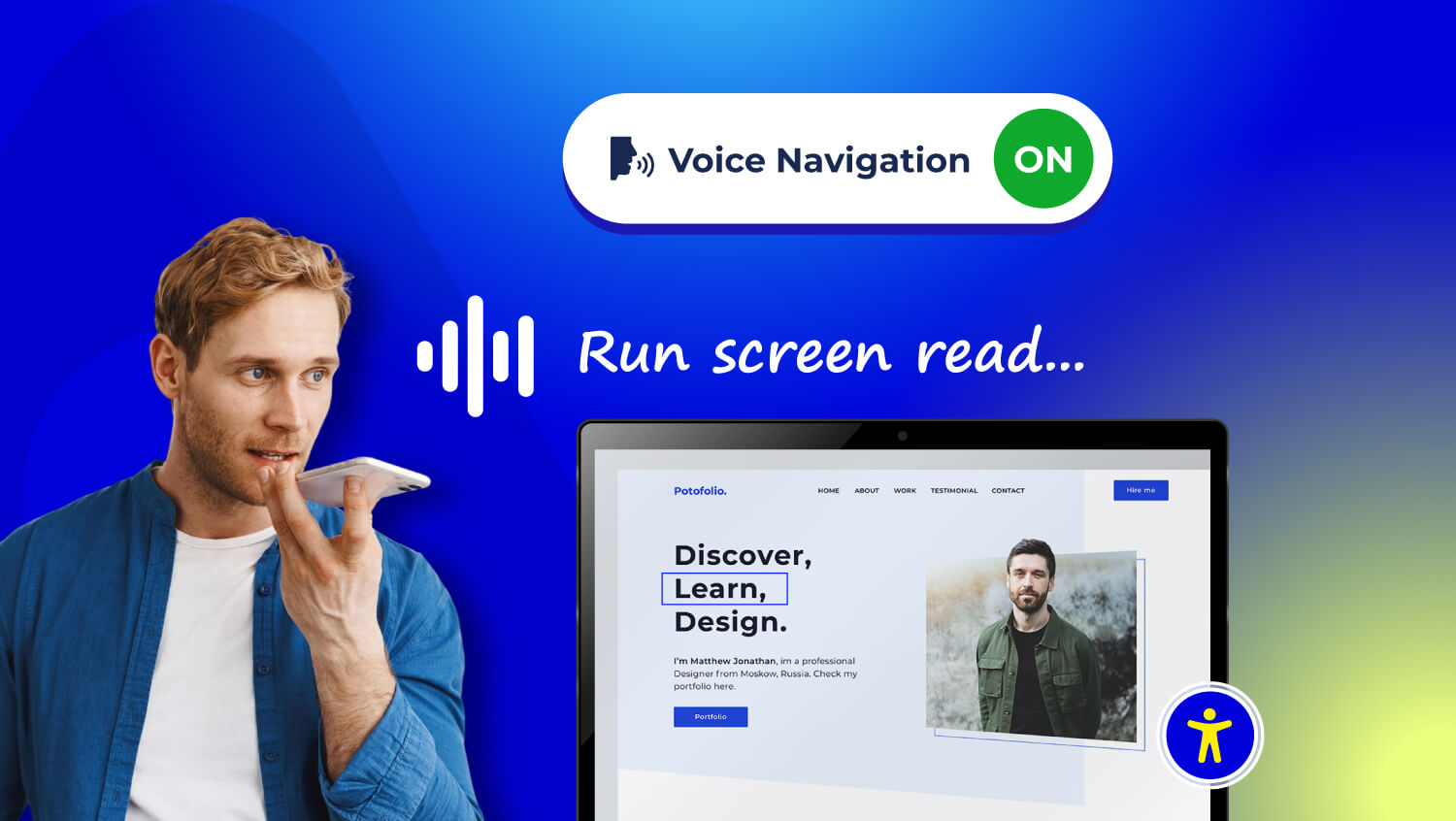
Voice recognition software converts spoken commands into digital actions. Users can open links, click buttons, and complete forms through voice alone.
How Websites Can Help:
- Use proper HTML semantics, such as <button> instead of clickable <div>.
- Write descriptive link and button text (“Submit form” instead of “Click here”).
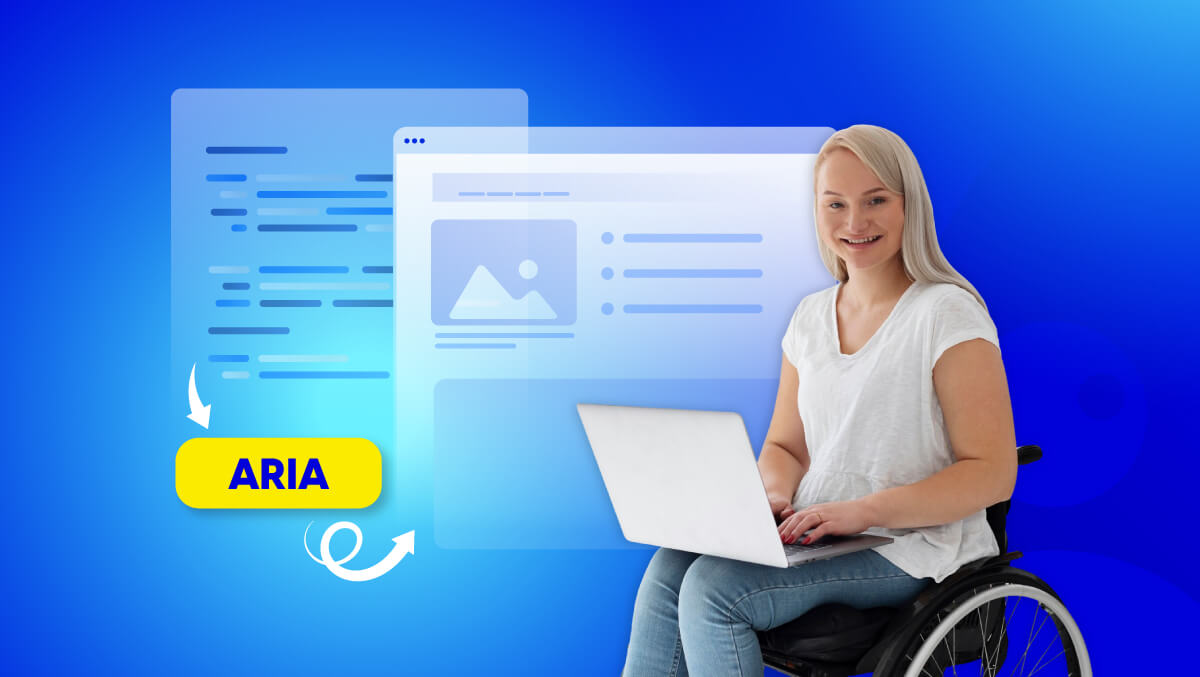
- Ensure ARIA labels and roles are implemented correctly.
Pro Tip:
The Access Audit automatically reviews your site’s structure and flags missing labels or incorrect markup that can cause issues with voice navigation tools.
Eye-Tracking Systems and Head Pointers
Eye-tracking and head-pointer technologies allow users to control on-screen movement using eye direction or head motion. These tools depend on predictable, spacious, and stable layouts.
How Websites Can Help:
- Keep layouts consistent across pages.
- Ensure large clickable or tap targets (minimum 44×44 px).
- Avoid content that moves unexpectedly.
Tip:
Use Access Monitor to continuously track accessibility performance and detect interface issues that may affect users of these technologies.
Compatibility Testing with Assistive Tools
Accessibility requires ongoing attention and testing. Even small updates can disrupt assistive technology compatibility.
Best Practices:
- Regularly test your website using only a keyboard.
- Include accessibility audits in your development cycle.
- Perform manual and automated evaluations for accuracy.
Access Accy provides quick accessibility health checks, while Access Services offers full professional audits to ensure long-term WCAG compliance.
Accessible Navigation and Interaction Design
Creating a website that’s truly accessible for people with motor disabilities starts with predictable, consistent, and easy-to-use navigation. A well-structured interaction design reduces effort and helps users complete tasks efficiently, regardless of how they interact with your site.
Logical and Consistent Layout
A logical page structure allows users to move through content intuitively, especially for those relying on assistive devices or keyboard navigation.
Best Practices:
- Keep navigation menus and headers consistent across all pages.
- Use clear hierarchy through proper heading tags (<h1>, <h2>, <h3>).
- Maintain a predictable order for interactive elements like forms and buttons.
Code Example:
<header>
 <nav>
   <ul>
     <li><a href="/home">Home</a></li>
     <li><a href="/services">Services</a></li>
     <li><a href="/contact">Contact</a></li>
   </ul>
 </nav>
</header>
Clear Tab Order and Focus Indicators
Users who rely on keyboards navigate using the Tab key to move through links and buttons. A clear visual focus indicator shows where they are on the page, preventing confusion.
Best Practices:
- Use logical tab order (follows the natural reading flow).
- Never remove outlines with outline: none; unless replaced with a custom visible style.
- Ensure modals, forms, and menus trap focus correctly.
Code Example:
:focus-visible {
 outline: 2px solid #0078D7;
 outline-offset: 3px;
}
<a href="#main" class="skip-link">Skip to main content</a>
Shortcut Keys and Access Keys
Providing keyboard shortcuts can greatly improve efficiency for users who find multiple keystrokes tiring. Access keys help users reach important areas of a page instantly.
Best Practices:
- Assign intuitive shortcuts for key actions (e.g., “S” for Search).
- List available shortcuts in your accessibility statement or help section.
- Avoid conflicts with browser/system shortcuts.
Code Example:
<a href="/search" accesskey="s">Search</a>
<button accesskey="h">Home</button>
document.addEventListener('keydown', e => {
 if (e.altKey && e.key === 's') window.location = '/search';
});
Avoiding Complex Gestures and Hover-Only Actions
Complex interactions like drag-and-drop, hover-based menus, or multi-touch gestures can exclude users who lack fine motor control. Accessible design ensures that every action has a simple alternative.
Best Practices:
- Replace hover-only menus with click or keyboard-triggered versions.
- Offer buttons for drag-and-drop actions.
- Provide static alternatives to gesture-based inputs.
Code Example:
<button onclick="showMenu()">Open Menu</button>
<ul id="menu" hidden>
 <li><a href="/profile">Profile</a></li>
 <li><a href="/settings">Settings</a></li>
</ul>
<script>
function showMenu() {
 document.getElementById('menu').hidden = false;
}
</script>
Testing and Validation for Motor Accessibility
Designing for accessibility doesn’t stop at implementation , it must be tested, validated, and refined continuously. Effective testing ensures that people with motor disabilities can navigate and interact with your website easily, regardless of their tools or limitations.
Manual Testing with Keyboard-Only Navigation
Manual testing is the most direct way to identify barriers for users who can’t use a mouse. It helps you experience your site as someone navigating with only a keyboard would.
Best Practices:
- Try completing all major tasks using only Tab, Shift + Tab, Enter, and Space.
- Confirm that focus moves logically and remains visible.
- Ensure modals and dropdowns trap focus correctly.
Quick Test Code Snippet:
:focus-visible { outline: 2px solid #0078D7; outline-offset: 3px; }
If you lose track of where you are while tabbing, your site likely has a focus visibility issue.
Using Accessibility Evaluation Tools
Automated testing tools quickly identify accessibility issues, especially in early development stages.
Popular Tools to Use:
- WAVE – Highlights accessibility errors visually.
- axe DevTools – Integrates into browsers for real-time testing.
- Lighthouse (in Chrome DevTools) – Provides accessibility scoring and improvement tips.
Tip:
Pair these tools with manual testing, automation detects technical issues, but not usability barriers.
Code Example:
npx lighthouse https:// yoursite.com --only-categories=accessibility
Involving Users with Disabilities in Testing
No automated tool replaces real user feedback. People with motor disabilities bring authentic insights into how accessible your design truly is.
Best Practices:
- Conduct usability sessions with individuals using adaptive keyboards, voice software, or head pointers.
- Record navigation patterns and note pain points.
- Implement iterative improvements based on feedback.
Pro Tip:
Tools like Access Services can help facilitate inclusive accessibility audits that include real user testing and professional evaluation.
Common Mistakes Developers Should Avoid

Even small oversights can make a website unusable for people with motor impairments. Avoid these common pitfalls to maintain accessibility quality.
Small Icons or Tight Spacing
Tiny buttons or tightly packed elements require precision that many users lack.
Fix:
button, a { min-width: 44px; min-height: 44px; margin: 6px; }
Ensure tap targets are large enough and spaced properly.
Inaccessible Custom Widgets
Custom sliders, menus, or carousels often break accessibility because they ignore standard keyboard behavior.
Fix:
Use ARIA roles and native HTML controls whenever possible. If you must use custom components, ensure they respond to keyboard events.
el.addEventListener('keydown', e => {
 if (e.key === 'Enter' || e.key === ' ') e.preventDefault();
});
Ignoring Focus States
Removing focus outlines may seem visually clean but makes navigation impossible for keyboard users.
Fix:
:focus-visible { outline: 2px solid #000; }
Never use outline: none; unless replaced with a custom, visible style.
Overuse of Animations or Motion-Triggered Actions
Animations can distract or trigger involuntary actions for users with motor conditions like tremors.
Fix:
@media (prefers-reduced-motion: reduce) {
 * { animation: none !important; transition: none !important; }
}
Provide static alternatives and respect user motion preferences.
Conclusion
Building an accessible website for motor disabilities isn’t about adding features, it’s about removing barriers. By ensuring logical navigation, visible focus states, and compatibility with assistive technologies, designers and developers can make the web a place where everyone participates equally.
Inclusion starts with awareness but thrives through consistent, small improvements. Every adjustment, from enlarging buttons to simplifying gestures, helps someone access content they couldn’t before.
If you’re ready to begin making your website inclusive, start by testing it with the free accessibility checker to identify gaps and opportunities for improvement. Small steps today lead to meaningful accessibility tomorrow.
FAQs
You can use tools like WAVE, axe DevTools, or Access AI Audit to automatically scan and identify accessibility issues related to keyboard use, focus, and interactivity.
Keyboard navigation allows users who cannot use a mouse to move through menus, forms, and links efficiently using the Tab, Enter, and Arrow keys, ensuring equal access for all.
Yes, many regions enforce web accessibility through laws such as the Americans with Disabilities Act (ADA), Section 508, and EN 301 549 in the EU. Non-compliance can lead to penalties and lawsuits.
Motor accessibility focuses on physical interaction, helping users who have limited mobility or dexterity, while visual accessibility ensures content is perceivable for users with low vision or blindness.
Start small: use accessible templates, clear layouts, and tools like the Access Assistant to test your site. Accessibility improvements can be incremental and budget-friendly.
Yes. Search engines prioritize accessible websites because they are better structured, faster, and easier to navigate. Accessibility improvements often align with SEO best practices like semantic HTML and descriptive text.