Role of Color Contrast in Accessibility and User Experience Design
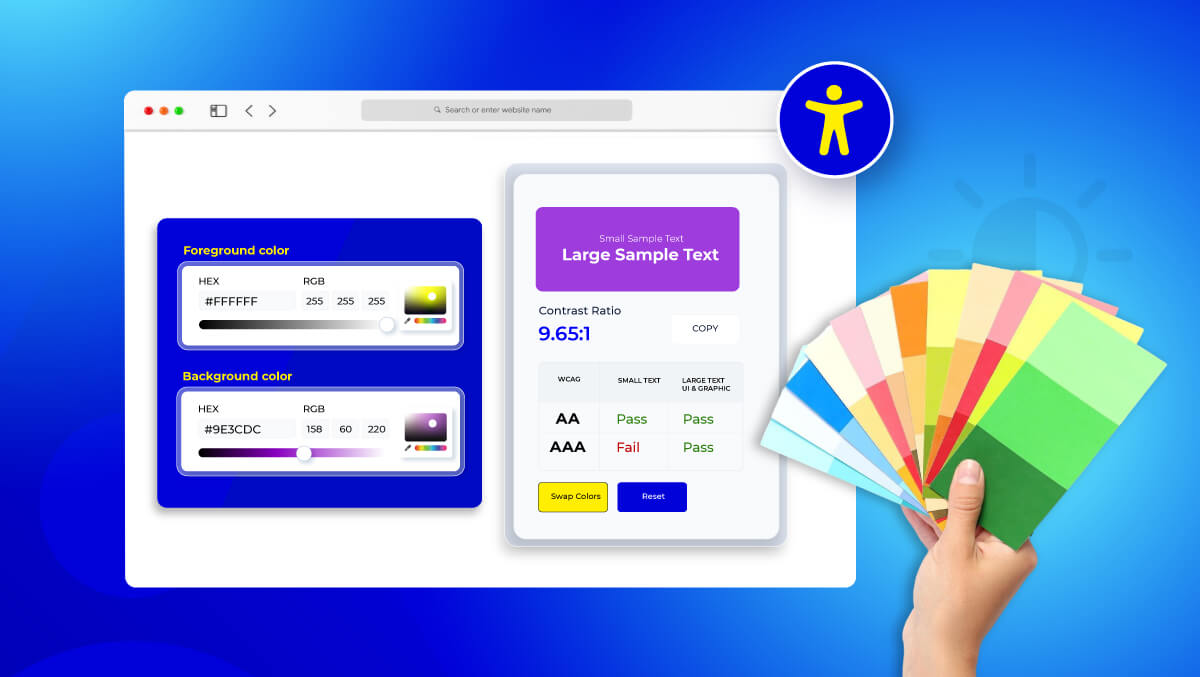
Ever attempted to read a text that is written on a light gray background or white text on yellow? Annoying, isn't it? That fight is exactly what millions of users with visual impairments have to face every day, not because of their eyesight, but because of color contrast issues in digital design.
Color contrast is essentially the difference in lightness between text (or elements) and the background. When it is correct, it makes content readable and user interfaces accessible to everyone. When it is incorrect, it leaves out almost 2.2 billion people worldwide who have vision impairment.
As the world is moving towards digital inclusiveness which is not only a trend but also a business necessity, it is still not an option to have the correct color contrast; it is absolutely necessary.
We will learn through this guide how color contrast influences accessibility and user experience, why it is important and how designers and developers can be sure of it every time.
What Is Color Contrast?
Color contrast is one of the basic principles of visual design and impacts how easy or hard it is for users to distinguish elements on the screen. Let’s break this down directly:
Definition
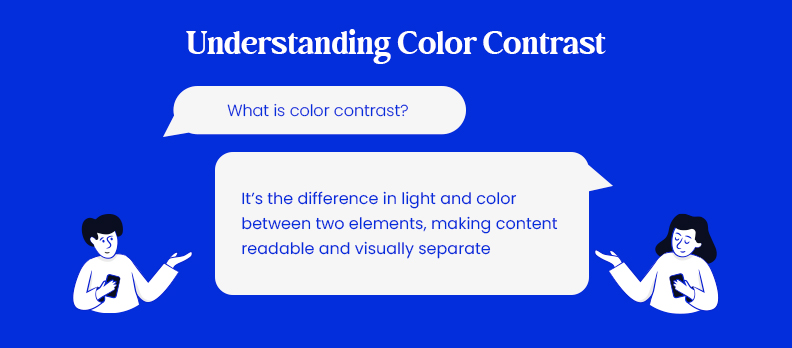
Color Contrast is the difference in light and color between two elements, such as text vs. background, that makes content readable and visually separate.
Hue vs. Brightness vs. Contrast
- Hue: The color (red, blue, green, etc.)
- Brightness: How light or dark a given color appears.
- Contrast: The visual separation of hues and brightness levels that affect legibility and perception.
Luminance contrast vs. Chromatic contrast
- Luminance contrast: Based on the intensity of light; important for text readability.
- Chromatic contrast: Using the difference in color as a background color (for example, red vs. blue); helps to define elements in a visual hierarchy based on differences other than light intensity.
Therefore, achieving effective color contrast is about pairing both luminance and chromatic contrasts so that anyone can easily read and navigate in digital interfaces regardless of their vision abilities.
Why Color Contrast Matters for Accessibility
Inadequate color contrast isn’t simply a design flaw, it’s a barrier to accessibility. When colors of text and colors of background do not distinguish enough color, users often struggle to read, navigate, and engage with content.
Low Contrast and Readability
Low-contrast combinations can drain readability by as much as 60% especially on mobile screens or when the user is facing a bright light in the ambient environment. WebAIM’s accessibility study found that 86% of homepages do NOT meet basic color contrast requirements.
The Effects on Users with Visual Impairments
- Color Blindness: Nearly 300 Million people globally are color blind, meaning they struggle to tell apart similar hues. (red vs. green, etc.)
- Low Vision / Aging Eyes: Sensitivity to brightness is often lessened so subtle differences in color may be distinguishable. This means text or buttons, etc. may become nearly invisible.
- Temporary Conditions: Glare or reflections off the screen can mimic users with visual impairments.
Accessibility as a Principle
When color contrast is considered while designing, it is not about compliance, it is about inclusion. Accessibility should be considered in design from the very beginning so all users perceive, understand, and engage equally with digital content.
Good color contrast fosters usability for people with disabilities but even more so improves usability for everyone else creating a more efficient and comfortable experience for all users.
The Role of Color Contrast in User Experience (UX)
Color contrast does not only serve the purpose of making text legible, but also influences the way users feel and interact with a product. Thus, it is an important part of constructing digital experiences, that are clear, comfortable, and intuitive.
Improving Legibility and Comprehension of Content
Proper contrast allows users to efficiently read and comprehend a body of information, with little effort. Research suggests that, optimal contrast ratios (4.5:1 or more) improve both reading speed and comprehension, particularly with lengthy content and environments with dense body text.
Assisting User Focus and Mental Strain
When the user is able to effortlessly distinguish between elements, their brain expends less energy to interpret a body of content.
A balanced level of contrast creates a cognitive jolt of the user's attention towards a specific element, such as buttons, forms, or headings, allowing the user to remain focused, and complete tasks in less time.
Improving Usability Across Devices and Environments
High-contrast design allows the content to be visible, during bright sunlight, dark mode, or low-brightness displays. In fact, as usability improves over the desktop, tablets, and smartphones a user interacts with, color contrast improves consistency in their user experience.
In summary effective color contrast improves UX through legibility, intuitiveness, and inclusiveness thus increasing satisfaction for each user, every time.
How to Measure and Evaluate Color Contrast
Ensuring your design meets accessibility standards starts with accurately measuring color contrast ratios. This process verifies that the contrast between text and background aligns with WCAG (Web Content Accessibility Guidelines) requirements, typically 4.5:1 for normal text and 3:1 for large text or UI elements.
Tools and Techniques for Checking Contrast Ratios
Designers and developers can easily test contrast values using automated accessibility tools that analyze color combinations across an entire website or design system.
Here are some top-rated tools for accurate testing:
- Accesstive Color Contrast Checker: Instantly measures contrast ratios and flags non-compliant color pairs with real-time suggestions.
- WebAIM Contrast Checker: A trusted, simple tool for manual input and ratio evaluation.
- Stark Plugin: Integrates with Figma, Sketch, and Adobe XD to check contrast directly in design files.
- Chrome DevTools Accessibility Panel: Offers built-in contrast testing when inspecting page elements, displaying contrast values and compliance indicators.
Extended Testing and Monitoring
For a deeper, organization-wide approach, Accesstive provides a full suite of accessibility auditing tools:
- Access Widget: Adds a visual widget to help users customize contrast settings live on your site.
- Access AI Audit: Uses AI-powered scanning to detect low-contrast elements automatically.
- Access Monitor: Continuously tracks accessibility performance over time, including color contrast compliance.
- Access Accy: Your AI-Powered Assistant for an Inclusive Digital Experience
Understanding Ratio Results and Adjusting Colors
- Ratios 4.5:1 or higher: Accessible for body text.
- Ratios 3:1–4.5:1: Acceptable for large text or bold elements.
- Ratios below 3:1: Fail WCAG standards; adjust brightness, hue, or saturation.
Using these tools ensures your designs are visually inclusive and compliant. By regularly testing color contrast, teams can deliver experiences that are both aesthetically appealing and universally accessible.
Best Practices for Designing with Color Contrast
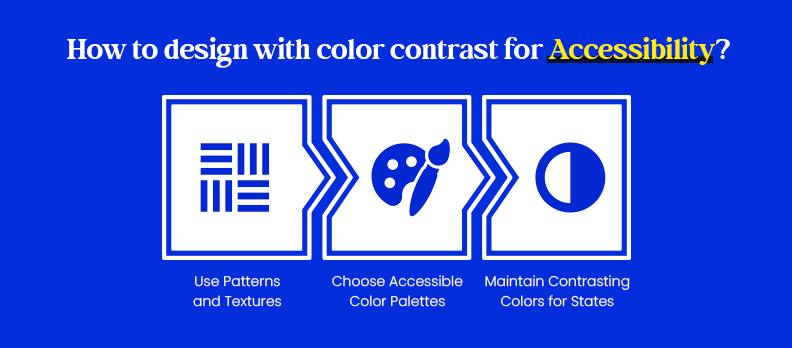
Designing with accessibility in mind means thinking beyond aesthetics. Consistent, well-balanced contrast ensures users can interact with and understand content easily, regardless of ability or environment.
Choosing Color Palettes that Meet Accessibility Guidelines
- Choose colors. Your chosen colors should meet WCAG minimum contrast standards (4.5:1 for normal text, 3:1 for large text).
- Do not use colors that are similar in brightness (e.g., light gray on white).
- Make sure you are testing the colors you select early in the design process.
- Consider colors designating light and dark mode for consistent visibility.
Using Patterns and Textures in Addition to Color
- Do not rely on color to convey meaning on its own; instead, include patterns or textures, or accompany the meaning with icons.
- Use visual cues (e.g., dotted lines, visual icons, or borders) to signal to users that something is different.
- You can also apply textures or variations in shape in charts and infographics to communicate meaning more effectively to users with color vision deficiency.
- In addition to colors changing, support alerts or states with a symbol (✓, ⚠️, ✖️).
Maintain Contrasting Colors for Different States (Hover, Active, Disabled)
Interactive elements should remain legible and distinguishable for each state.
- Hover/Active: Make subtle adjustments to brightness or saturation for the hover/active signal yet continue to comply with contrast.
- Disabled: Use softer tones yet maintain readability and maintain a contrast ratio of at least 3:1.
- Test every interactive state directly in your prototype or browser to ensure that both states are accessible.
By establishing and maintaining good practices and standards, you enhance your design clarity, consistency, accessibility, and experiences for all using an accessible visual characteristic.
How Developers Can Implement Accessible Contrast
Developers play a crucial role in ensuring visual accessibility. By defining compliant color tokens, supporting multiple themes, and maintaining contrast across all states, you can make your interfaces more inclusive and readable.
Define Accessible Colors Using CSS Variables
Use predefined color variables to maintain consistent and compliant contrast.
:root {
 --text: #0a0a0a;
 --bg: #ffffff;
 --primary: #0046d5;
 --on-primary: #ffffff;
}
body {
 color: var(--text);
 background: var(--bg);
}
button {
 background: var(--primary);
 color: var(--on-primary);
}
Support Light and Dark Modes
Implement theme switching using the system’s color preference.
@media (prefers-color-scheme: dark) {
 :root {
   --text: #eaeaea;
   --bg: #121212;
   --primary: #81a7ff;
   --on-primary: #0b0b0b;
 }
}
Maintain Contrast for Hover and Disabled States
Ensure all interaction states remain legible.
button:hover { background: #003ab5; }
button:disabled {
 color: #7a7a7a;
 background: #e9e9e9;
}
Quick JavaScript Contrast Checker
Verify that your colors meet WCAG contrast ratios.
function contrast(c1, c2) {
 const lum = c => {
   c = parseInt(c.slice(1), 16);
   const [r,g,b] = [(c>>16)&255, (c>>8)&255, c&255];
   const L = [r,g,b].map(v => (v/255 <= .03928) ? v/12.92 :
((v+0.055)/1.055)**2.4);
   return 0.2126*L[0] + 0.7152*L[1] + 0.0722*L[2];
 };
 return (Math.max(lum(c1), lum(c2)) + 0.05) / (Math.min(lum(c1), lum(c2)) + 0.05);
}
console.log(contrast("#0046d5", "#ffffff").toFixed(2)); // ≥4.5 passes
Test in Browser Tools
Use the Chrome DevTools Accessibility Panel to inspect color contrast directly in your site and confirm WCAG compliance.
Conclusion
Color contrast is not just a design preference, it is one of the main principles of digital accessibility and user experience. With correct contrast, users can read, navigate and interact with the content without any difficulties, irrespective of their visual capabilities or device settings.
For designers and developers, giving contrast the priority is equivalent to creating products that are not only compliant with the rules but also really inclusive. Each accessible color that you choose is a step towards making the web more usable for everyone.
In case you are doubtful if your website conforms to the accessibility standards, a free accessibility audit will help you locate color contrast issues and other compliance gaps. Why not start today to enhance the digital experience? Accessibility is a great advantage to all users and not only to some.
FAQs
A minimum ratio of 4.5:1 for normal text and 3:1 for large or bold text meets WCAG standards.
Use tools like Accesstive Color Contrast Checker, WebAIM Contrast Checker, or the Chrome DevTools Accessibility Panel.
It ensures readability and inclusivity, allowing users with visual impairments to easily interact with digital content.
Luminance contrast deals with brightness differences, while chromatic contrast focuses on hue variations like red vs. blue.
Yes, good contrast improves readability, focus, and comfort, enhancing overall UX across all devices and lighting conditions.
By defining CSS color variables, supporting light/dark modes, and testing all hover, active, and disabled states for compliance.